 icon in
Release schedule
Release updates are implemented by the group, as indicated in the following table.
The release schedule is subject to change and updated as required. To determine your group or ask questions, please log a case for PrismHR Professional Services.
|
Upgrade groups |
Day of week |
Tentatively occurs on |
|---|---|---|
| Wave 1 | Thursday |
January 22, 2026 |
| Wave 2 | Friday |
January 23, 2026 |
|
On-Premise |
Thursday |
January 29, 2026 |
Enhancements
You can download a complete list of enhancements in Excel format.
Click one of the following links to navigate quickly to a section.
Fixes
You can download a complete list of fixes in Excel format.
Benefits Administration (BA) Enhancements
|
Ticket |
Description |
Summary |
Help Content |
|---|---|---|---|
|
WSP-1820 |
New Reporting Section on the Group Benefit Plans form |
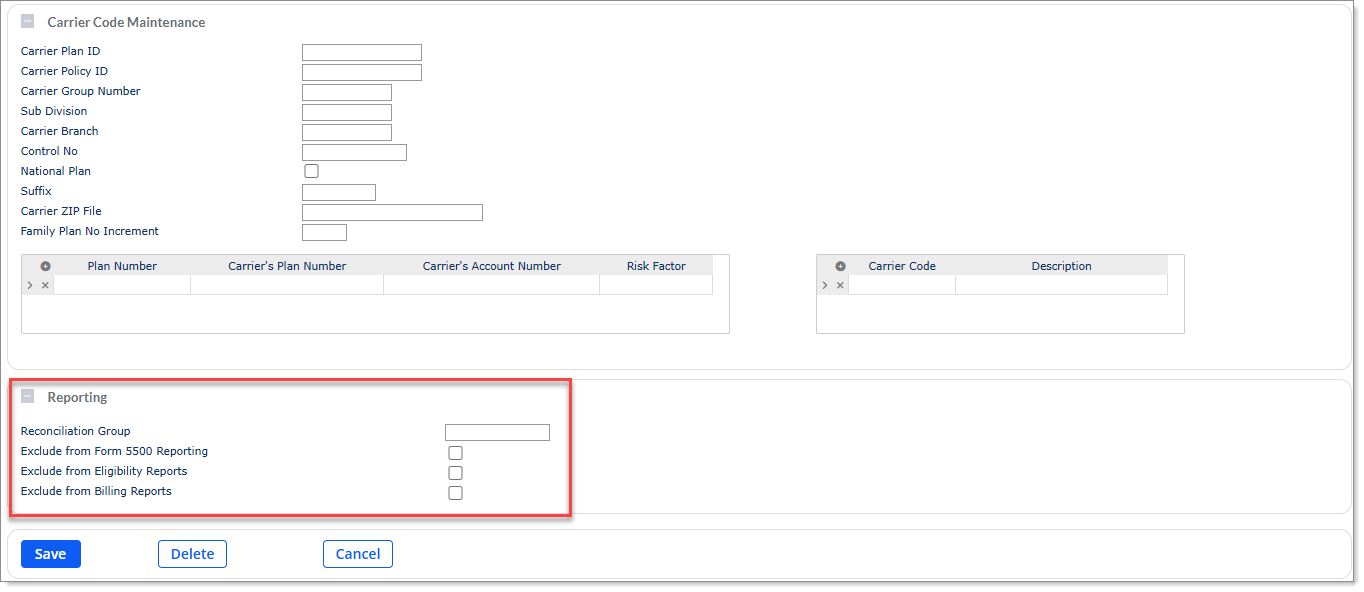
On the Group Benefit Plans form, the fields related to reporting from different sections have been moved to the newly created Reporting section which is now available below the Carrier Code Maintenance section. This section displays for all insurance class plans.
|
For more information, see Configuring Reporting Options help topic. |
| WSP-2517, WSP-2674 | Changes to the Benefit Plan Setup form |
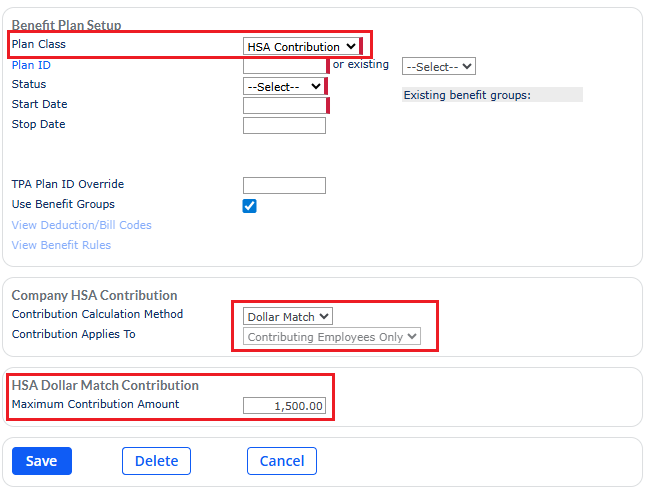
When you select HSA Contribution in the Plan Class field on the Benefit Plan Setup form, then the Use Benefit Groups field is enabled. Additionally, under the Company HSA Contribution section a new drop-down option named Dollar Match has been added to the Contribution Calculation Method field.
When you select the Dollar Match drop-down option, the Contribution Applies To fields defaults to a read-only Contributing Employees Only option. Additionally, the conditional section displays with the header name HSA Dollar Match Contribution with a Maximum Contribution Amount field that you can edit. |
For more information, see Setting Up a Benefit Plan help topic. |
| WSP-2675 | Changes to the Payroll Process logic |
When an employee is allocated to the Company's HSA Contribution as Dollar Match, then during payroll processing, the system matches the same HSA contribution to the employee's contribution. Note: If the Maximum Contribution Amount is set for Company HSA Contribution on the Benefit Plan Setup form, then the total company contributions in a Plan Year does not exceed the amount set in the Maximum Contribution Amount field. |
For more information, see the in-product help. |
| WSP-2583 | Adding HSA Creation to Audit Log |
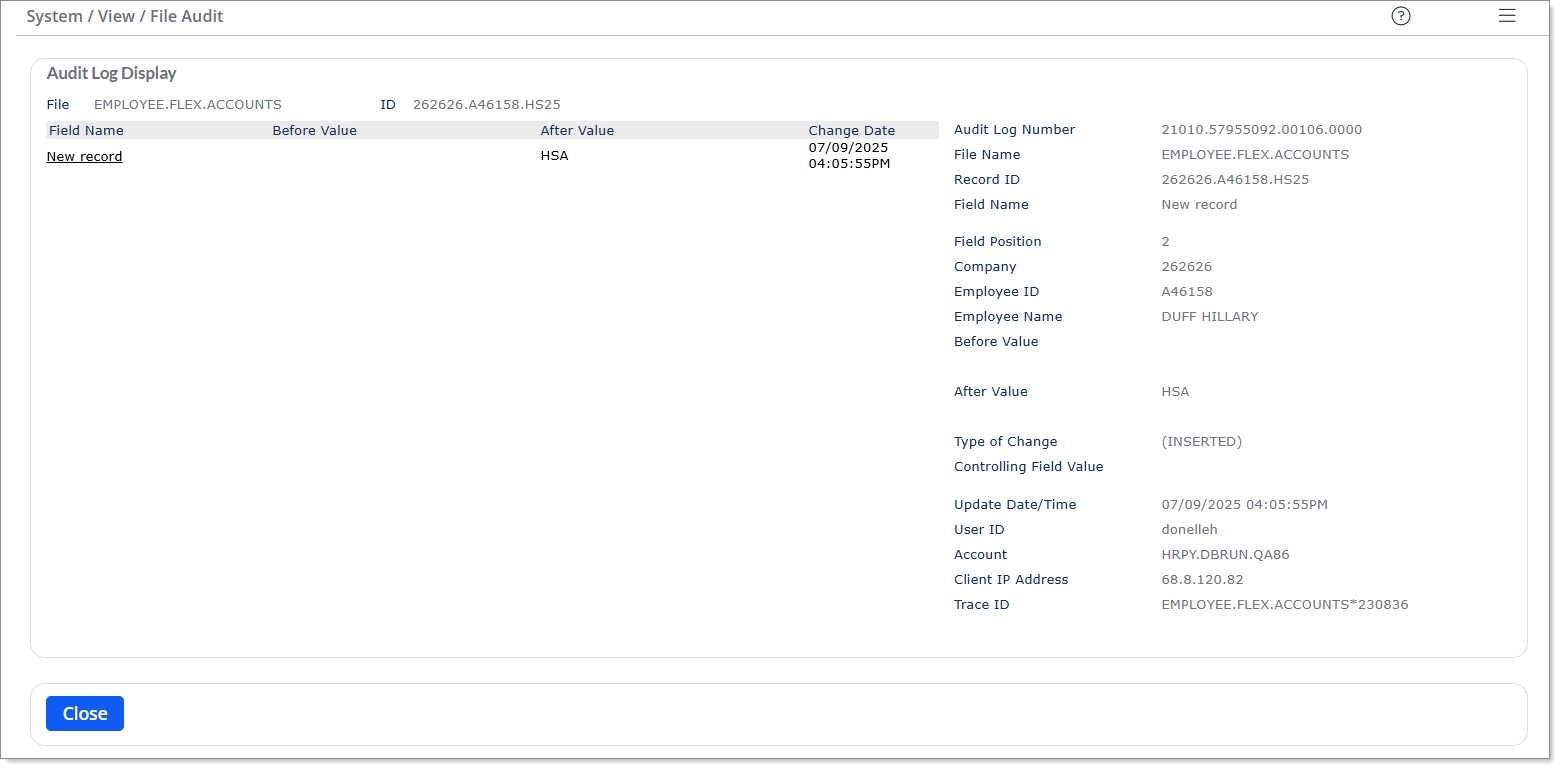
On the Benefit Plan Setup form, when you set an HSA benefit plan with Company HSA Contribution setup for All HDHP Employees and the Employee is enrolled in an HDHP medical plan, then on the Employee Flexible Spending Accounts form, when you click Audit under the Actions menu, new Flex Spending Account record is created and is also tracked in the audit log.
|
For more information, see the in-product help. |
| WSP-2695 | Changes to the Retirement Plans form |
On the Retirement Plans form, when you update an existing Retirement Plan that have active enrollments, a warning message stating Critical Warning! This Retirement Plan has active employee enrollments and should not be updated. Making changes to the plan setup can cause serious changes or disruptions to the employee deferrals. Do you still wish to update this plan? is displayed while saving the form. |
For more information, see the in-product help. |
| WSP-2874 | Functionality of Pre-tax Catchup to ROTH Catchup after 402(g) limit option for Deemed ROTH field |
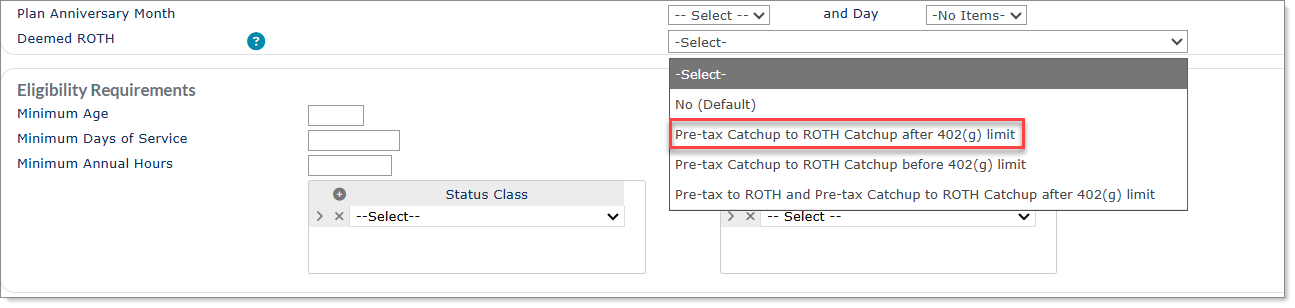
Selecting the Pre-tax Catchup to ROTH Catchup after 402(g) limit option for the Deemed ROTH field on the Retirement Plans form signifies that Pretax catchup may be taken to the point when the 402G limit is met. Any further catchup must be taken as a ROTH catchup contribution. For example, if an employee is an Highly Paid Employee (HPE) for prior year, then pretax contributions must be limited to $23,500 with any remaining Catchup contributions taken as ROTH Catchup for the following year.
|
For more information, see Setting Up Basic Information for a Retirement Plan help topic. |
|
WSP-2922 |
Changes to the Group Benefit Plans form |
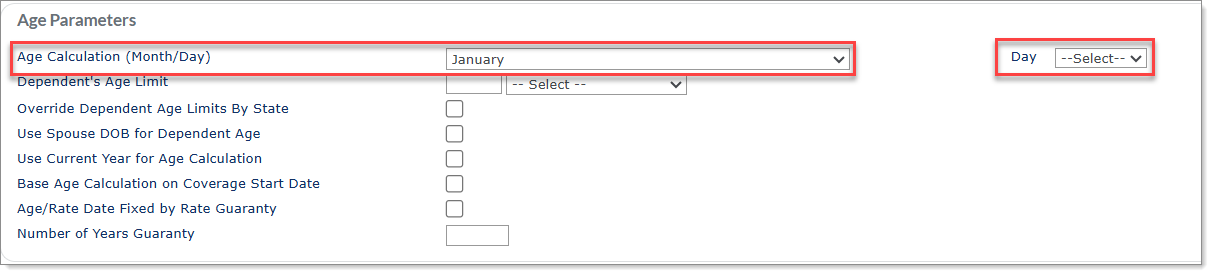
When you select a Benefit Plan, then under the Age Parameters section, for the Age Calculation (Month/Day) field, the Day field is now a drop-down field and is conditionally displayed only when a valid Month (January-December) is selected.
|
For more information, see Configuring Age Parameters help topic. |
|
WSP-3029 |
Changes to the Retirement Plans form |
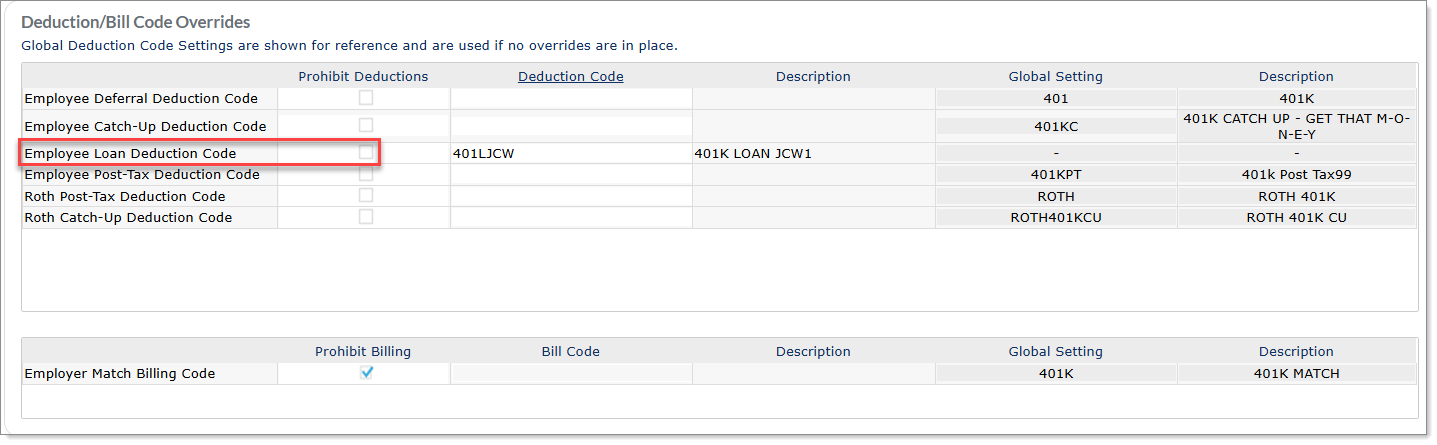
After selecting a retirement Plan ID, when you navigate to the Deduction/Bill Code Overrides section, the checkbox for Prohibit Deductions is now selectable for the Employee Loan Deduction Code row.
Additionally, when the Employee Loan Deduction Code row is checked for prohibition, then on the Employee Retirement Loans form, when you set up a retirement loan, (Prohibited) text is displayed next to the plan name in the Retirement Plan drop-down options. Note: If a loan exists for a retirement plan with Prohibit Deductions checkbox flagged for the Employee Loan Deduction Code row, then while running a payroll, the system does not take the loan deductions. |
For more information, see Setting Up Deductions and Bill Codes Overrides help topic. |
|
WSP-3074, WSP-3075, WSP-3088, WSP-3089 |
Changes to the Group Benefit Plans form |
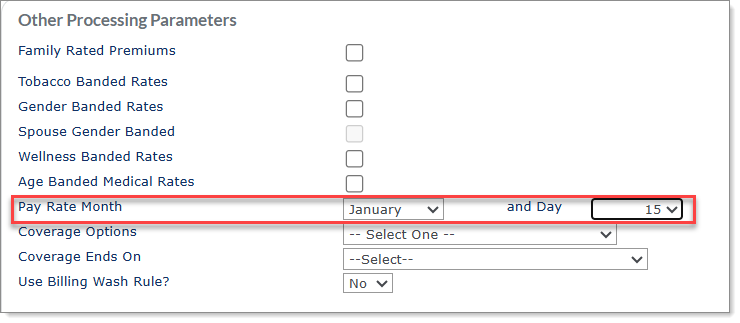
When you select a Benefit Plan, then under the Other Processing Parameters section, the Pay Rate Month and Day field has now become an optional field. However, if you enter any value for the Month field, then the Day field becomes mandatory.
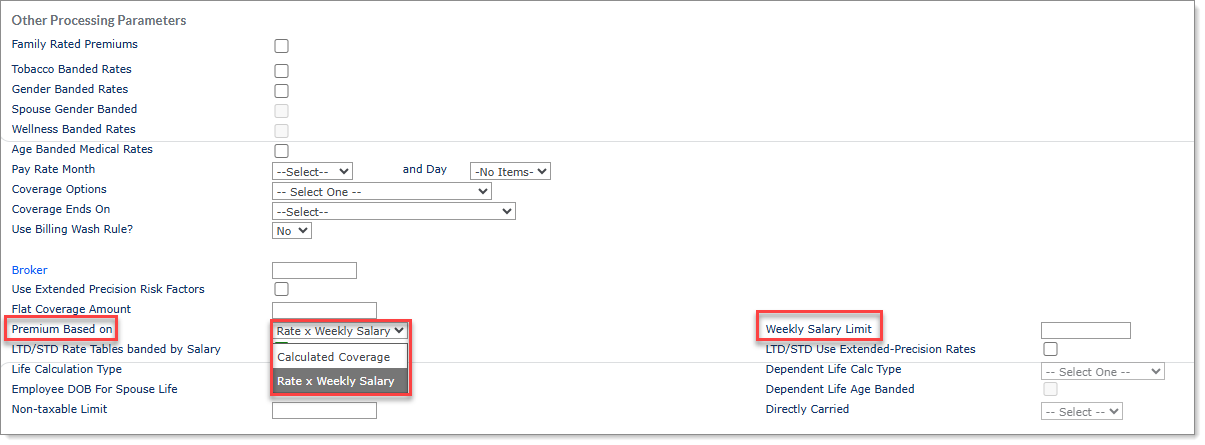
Under the Other Processing Parameters section, the earlier LTD/STD Based on Salary Instead of Coverage Amount field has been renamed to Premium Based on and is now a drop-down field. Additionally, the conditional field LTD/STD Salary Limit has also been renamed to Weekly Salary Limit/Monthly Salary Limit.
Note: Please note the following: If you select a benefit plan with Offer Type as Short Term Disability (STD), then the options in the Premium Based on drop-down field are:
If you select a benefit plan with Offer Type as Long Term Disability (LTD), then the value in the Premium Based on drop-down are:
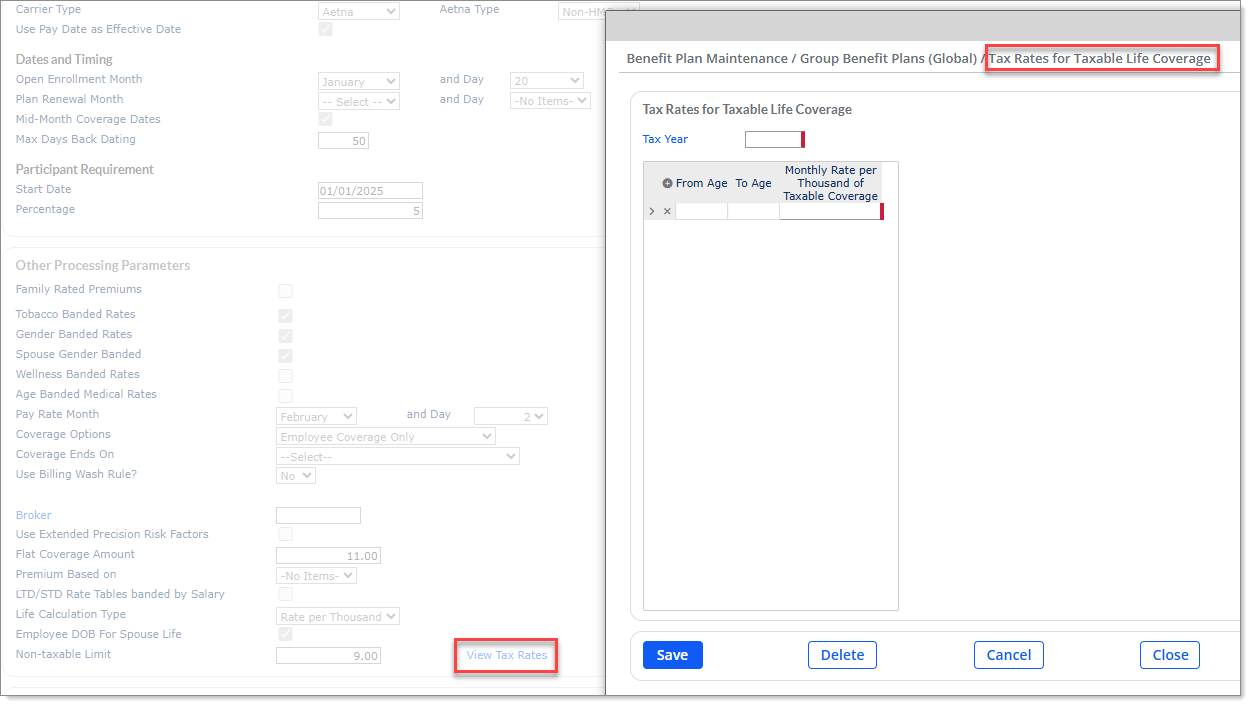
When you select a benefit plan with Offer Type as Life Insurance, then under the Other Processing Parameters section, a new hyperlink named View Tax Rates is added next to the Non-taxable Limit field, which redirects you to Tax Rates for Taxable Life Coverage modal form.
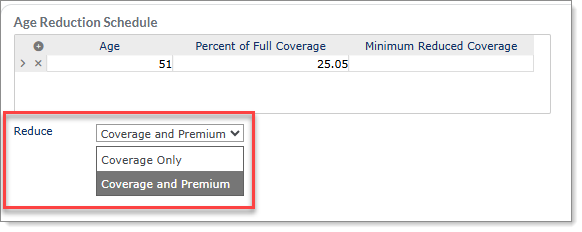
After you select a benefit plan with Offer Type as Life Insurance, then under the Age Reduction Schedule, the earlier Reduce coverage and premium checkbox field has been renamed to Reduce and is now a drop-down field with the following options:
|
For more information, see Maintaining Group Benefit Plans help topic. |
|
WSP-3124 |
Changes to the Client Benefit Plan Import form |
On the Client Benefit Plan Import form, two new optional columns have been added for Client Plan Renewal Month and Client Plan Renewal Day fields. The sample header file is also updated to include these two newly added fields. |
For more information, see the in-product help. |
Compliance (CMP) Enhancements
|
Ticket |
Description |
Summary |
Help Content |
||||||||||||||||||
|---|---|---|---|---|---|---|---|---|---|---|---|---|---|---|---|---|---|---|---|---|---|
|
CMP-6095 |
Changes to the W2 Error Report |
Previously, the W2 Error Report did not include a message if an employee had a negative amount for Social Security Tips during the W2 build. Now, the W2 Error Report will indicate when an employee has a ‘Negative amount of Social Security Tips’ during the W2, or W2c builds for both SBEA and Non-SBEA clients. The FormW-2 will not be created and the NO FORM GENERATED column is indicated with an asterisk. |
For more information, see the in-product help or PrismHR Employer Administration User Guide. |
||||||||||||||||||
|
CMP-6913 |
Changes to the Deduction Codes form |
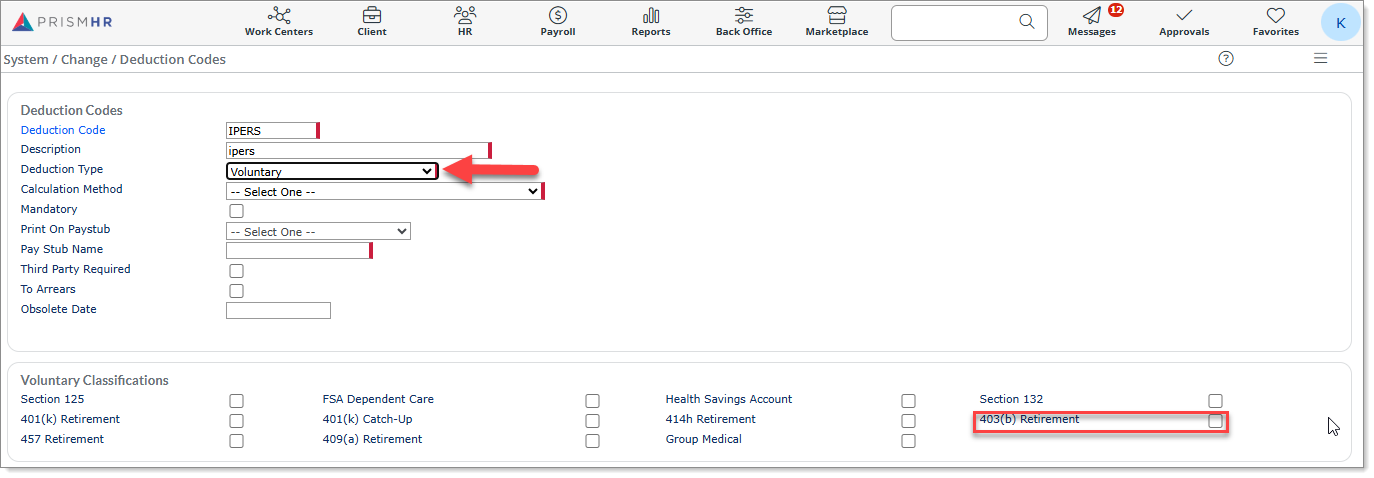
On this form, when you select the Deduction Type field as Voluntary, then under the Voluntary Classifications section, a new field named 403(b) Retirement appears as you can see from the screenshot below:
Now, you have a voluntary deduction type to support a 403(b) tax-sheltered annuity plan. The deduction amount will be exempt from Federal Withholding and resident State Withholding. |
For more information, see the in-product help or PrismHR Payroll Administration and Processing User Guide. |
||||||||||||||||||
|
CMP-6921 |
Changes to the Pay Codes form |
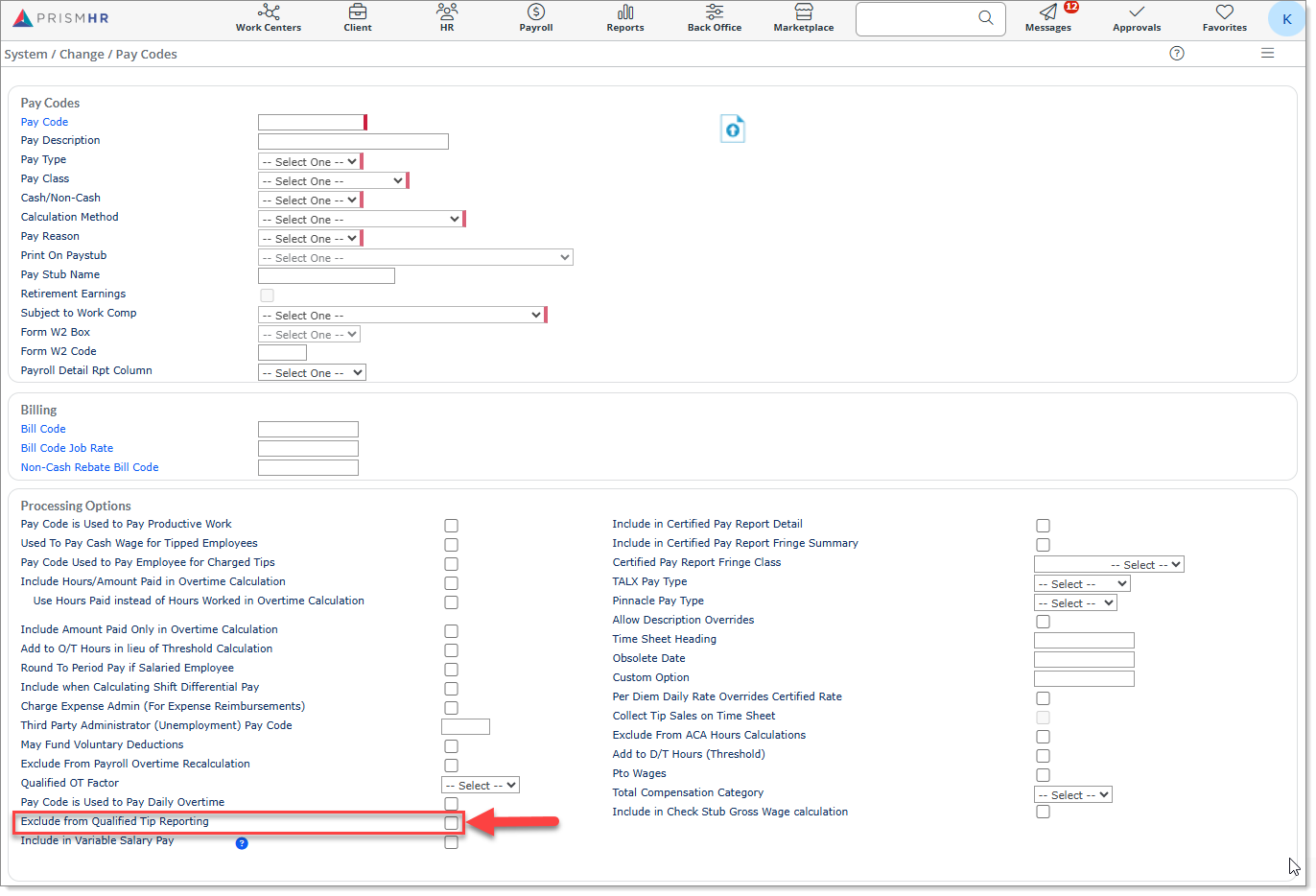
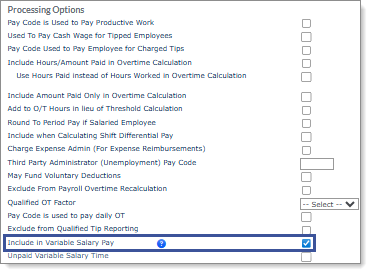
On this form, under the Processing Options section, a new field named Exclude from Qualified Tip Reporting has been added as you see from the screenshot below:
This field is unchecked by default. Check this field if you want to exclude the pay code from Qualified Tip Reporting. This field has no functionality within payroll processing, but it will be used in future recalculation and reporting options related to OBBBA. |
For more information, see the in-product help or PrismHR Payroll Administration and Processing User Guide. |
||||||||||||||||||
| CMP-6974 | Changes to the Update Employee W-2 Forms form |
Previously, on the Tax Deductions form, if for a redirected tax deduction code, the Form W2 Box 14 Override field was set to Include in Box 14, but the Box 14 Description Override field was blank, then on the Update Employee W-2 Forms form, under the Federal Form W-2 section, that tax was not included in the Other grid and was not included on the employee's Form W-2. Now, under the same circumstances, on the Update Employee W-2 Forms form, under the Federal Form W-2 section, that redirected tax code will display under the Other grid. The Description field in the grid will use the Pay Stub Name (if available), otherwise it will use the Tax Description of that redirected tax code on the Tax Deductions form and will be included on the employee's Form W-2. |
For more information, see the in-product help or PrismHR Employer Administration User Guide. |
||||||||||||||||||
|
CMP-7010
CMP-7032 |
Updates to EFW2 specifications
Updates to EFW2C specifications |
The RE (Employer) record on the EFW2 files are updated to include:
The RE (Employer) record on the EFW2C files are updated to include:
|
For more information, see the in-product help or PrismHR Employer Administration User Guide. |
||||||||||||||||||
|
CMP-7012 |
Flat Sum Bonus overtime for multiple pay codes |
The Flat Sum Bonus Overtime calculation logic has been updated to allow for multiple pay codes to be assigned to a single Flat Sum pay code. |
For more information, see the in-product help or PrismHR Payroll Administration and Processing User Guide. |
Employee Portal (EP) Enhancements
|
Ticket |
Description |
Summary |
Help Content |
|---|---|---|---|
|
EP-1827 |
Update Employee Address from Employee Details |
Managers can now update an employee's address using the Employee Details form. Simply click the Edit buttons in the Addresses section on the Personal Info tab to edit the Resident, Mailing, or W-2 addresses. Updating this information in Employee Portal also updates the corresponding Prism record. |
For more information, see the in-app help. |
|
EP-8578 |
Accessibility Enhancement for Skip to Content |
A new Skip to Content button has been added for users who can only access Employee Portal via a keyboard and need a way to skip over repetitive content. The Skip to Content button is hidden by default, but pressing the tab key for the first time on a form displays the Skip to Content button. Users can click this button to skip directly to the main content section of each form and directly to the first element in that section. |
For more information, see the in-app help. |
|
EP-9550 |
Job Candidate Information Synchronized with Prism |
When a job candidate has a Date of Birth and/or SSN and is hired via Employee Portal, this information is now updated on their corresponding New Hire record in Portal and passed to Prism. |
For more information, see the in-app help. |
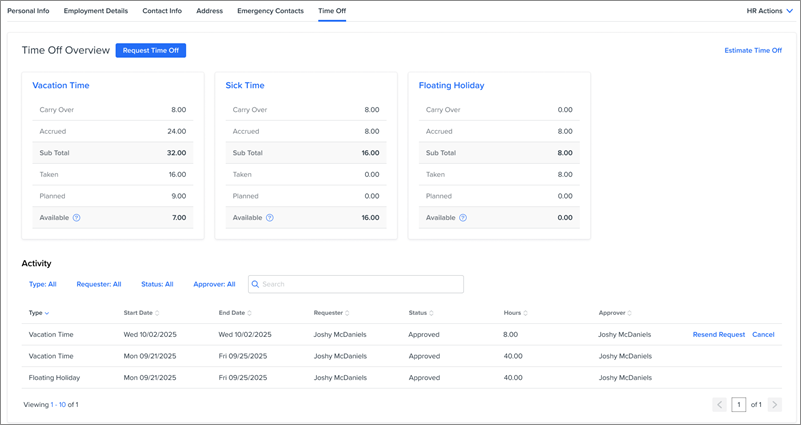
| EP-9637, EP-9720, EP-9721, EP-9727 | Time Off Form Redesign |
The Time Off tab has undergone a redesign for both the employee's My Time Off form and the manager's My Employees Time Off tab.
The employee My Time Off tab now features an Overview tab, as well as separate tabs to view the details for each PTO plan. Current PTO requests display on the Planned tab, while past requests display on the History tab. Employees can submit PTO requests using the Request Time Off button. This button now displays a separate window, where all the PTO information can be added directly and easily. In addition, they can use the Estimate Time Off link to access a tool to estimate the amount of PTO they will have at another time. This design now matches the Time Off tab on the manager's My Employees form. Managers can use this form to review and send PTO requests for their employees. |
For more information, see the in-app help. |
|
EP-9643, EP-9644, EP-9645, EP-9646 |
Improved HR Actions Modals |
The HR Actions available to managers have been enhanced with buttons to initiate the process that open a new window with additional information. For example, to rehire an employee, click the Start Rehire Process button. A new window displays, where you can enter all the employee's required information in a clear and straightforward process. This process is now used for the Leave of Absence, Rehire, Return to Work, and Termination HR Actions. |
For more information, see the in-app help. |
|
EP-9694 |
Additional Filters for New Hire Dashboard |
The New Hire Dashboard can now be filtered by the Hire Date, Start Date, and Hired By fields. Managers can use these new filters to search for specific employees more easily. |
For more information, see the in-app help. |
|
EP-9709 |
Enhancement to the Time Off Calendar |
The Employee and Type options on the Time Off Calendar now always display, and cannot be deselected using the Columns button. These fields now always display to prevent any confusion using this calendar. |
For more information, see the in-app help. |
|
EP-9743, EP-9744 |
Standard Options for Gender and Pronoun Designations |
The Gender Designation field and Preferred Pronoun field now feature a standard list that matches the options available in Prism. These fields are now synchronized with Prism, allowing the standard options selected to update the corresponding record. However, custom options for these fields are no longer supported. |
For more information, see the in-app help. |
|
EP-9750 |
View Taxable Wages on Paystub |
Employees can now view their taxable wages directly on their paystub on the Pay History screen. The Taxable Wages column on the Taxes Withheld tab of the Pay History form now displays the total amount of their wages that were taxable, which can then be compared to the amount of taxes withheld. |
For more information, see the in-app help. |
|
EP-9882 |
New Dashboard Configuration Experience |
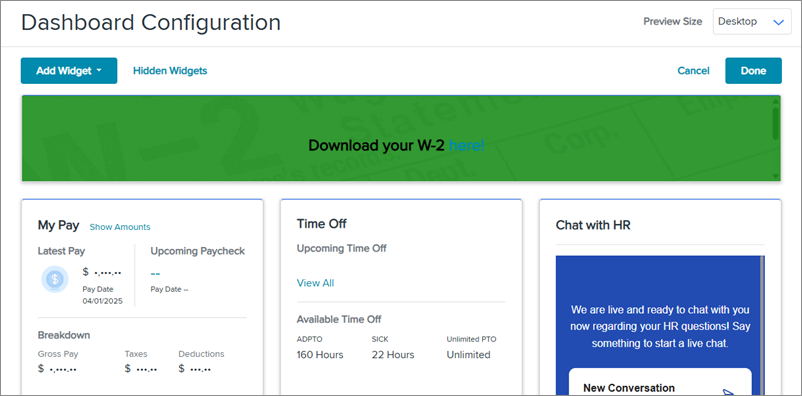
The Dashboard Configuration form in Prism has been redesigned to combine the Edit Content and Edit layout modes into one cohesive design. This mode is now in beta, and the old functionality is still available.
The new Dashboard Configuration experience allows Service Providers to change the content and layout of the dashboard simultaneously. Service Providers can add widgets, then resize and reposition these widgets while adding additional content without having to switch modes back and forth. In addition, widget content such as titles, data sources, and settings can be changed directly from this form. Changes to the Dashboard Configuration are saved automatically to provide a seamless experience setting up the dashboard. |
For more information, see the in-app help. |
Identity and Access Management (IAM) Enhancements
|
Ticket |
Description |
Summary |
Help Content |
|---|---|---|---|
|
IAM-2436 |
Enhancement to Authenticator App Name |
The authenticator app now displays the client name of the user's organization instead of PrismHR Auth. |
For more information, see the in-app help. |
Onboarding (OB) Enhancements
|
Ticket |
Description |
Summary |
Help Content |
|---|---|---|---|
|
OBE-7544 |
Select Effective Date Calculation for Life Events |
Service Providers can now override the eligibility date for a Life Event on the Life Event Maintenance form. When Use Benefit Rule is selected in the Source of Effective Date field, select an option in the Eligibility Date Used From Override field to use this selection in place of the benefit rule's eligibility date. Options for this field include:
|
For more information, see the in-app help. |
|
OBE-7881 |
Benefit Enrollment Reminder Message Template |
Service Providers can now set up a reminder message to be used for Benefits Enrollment reminders on the Message Templates form. Simply enter BEEMPLOYEEDASHBOARDREMINDER in the Message ID field to access and edit the message template for the Benefit Enrollment Employee Dashboard. When a service provider uses the Send Reminder action on the dashboard, the email message is automatically sent using this template. |
For more information, see the in-app help. |
|
OBE-9033 |
Generate Benefits Adjustments During Bulk Plan Termination |
When Service Providers conduct a bulk termination on the Terminate Benefit Plan form, the benefit adjustments are now generated automatically. This enhancement helps ensure that employees collect the full premium from their benefit plans after a bulk plan termination. |
For more information, see the in-app help. |
|
OBE-9034 |
Suppress Benefit Calculation During Bulk Termination |
Service Providers can now select an option to suppress the benefit adjustments calculation on the Terminate Benefit Plan form. Suspending this option during a bulk termination of benefit plans can increase performance and make the process more efficient. |
For more information, see the in-app help. |
|
OBE-9086 |
Send Reminder on Benefit Enrollment Plan Dashboard |
Service Providers can now use the Send Reminder action on the Benefit Enrollment Plan Dashboard to send reminders to employees to submit their benefit plan elections. This action uses the reminder message template set up on the new Message Templates feature for Benefits Enrollment. |
For more information, see the in-app help. |
|
OBE-9349 |
Updated I-9 Form |
The most recent version of the I-9 form, edition 01/20/25 with an expiration date of 05/31/2027, is now available. This version updates the language for work authorization in Section 1 and the descriptions of certain List B documents. This new form will be made available on 1/23/26. |
For more information, see the in-app help. |
|
OBE-9490 |
Gender Designation for Dependent Form |
Employees can now select a dependent's gender using the Gender Designation field on the Edit Dependent form. This field displays as long as the Hide Gender Designation setting is not selected on the configuration template or client override. This information uses a standard list of options from Prism, and updating the Dependent form also updates the corresponding record in Prism. |
For more information, see the in-app help. |
|
OBE-9491 |
Preferred Pronoun for Dependent Form |
Employees can now select a dependent's pronoun using the Pronoun field on the Edit Dependent form. This field displays as long as the Hide Pronoun setting is not selected on the configuration template or client override. This information uses a standard list of options from Prism, and updating the Dependent form also updates the corresponding record in Prism. |
For more information, see the in-app help. |
|
OBE-9508 |
Enhancement to Voluntary Coverage Amount |
When an employee accesses the Voluntary Benefit Summary form, the Coverage Amount for the employee now always displays. Previously, the coverage amount displayed based on the selection for the Include Employer Cost in Employee Self Service option on the configuration template. With this enhancement, employees can always view their coverage amount to verify their information on voluntary benefit plans. |
For more information, see the in-app help. |
|
OBE-9626 |
Select Primary Care Provider Validation Format |
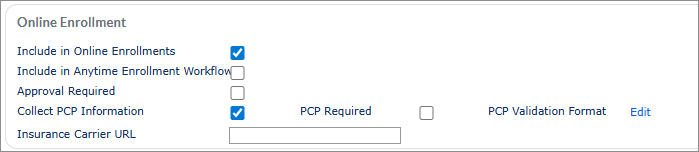
Service Providers can now select a format for validating an employee's Primary Care Provider on a Group Benefit Plan.
Select Edit on the PCP Validation Format field on the Online Enrollment form to access the Edit PCP Validation Format form, which can be used to define a format template to validate physician information. Instructions for this formatting are provided on the Edit PCP Validation Format form. |
For more information, see the in-app help. |
Prism (PD) Enhancements
|
Ticket |
Category |
Description |
Summary |
Help Content |
||||||||||||||||||||||||||||||||||||||||||||||||||||||||||||
|---|---|---|---|---|---|---|---|---|---|---|---|---|---|---|---|---|---|---|---|---|---|---|---|---|---|---|---|---|---|---|---|---|---|---|---|---|---|---|---|---|---|---|---|---|---|---|---|---|---|---|---|---|---|---|---|---|---|---|---|---|---|---|---|---|
|
WSP-3003 |
Accounting |
Enhancement to Auto Check Reconciliation Load Form |
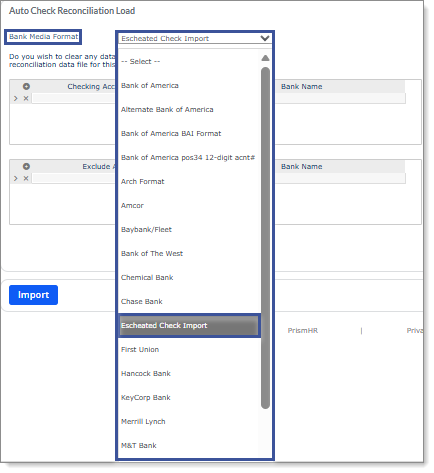
A new option, Escheated Check Import, is now available in the Bank Media Format field on the Auto Check Reconciliation Load form. For example:
You can use the Escheated Check Import option to import a list of payroll checks as "Escheated," so you can efficiently and accurately update the status of multiple checks at once (imports will accept files with the .csv format). Note: After selecting Escheated Check Import, the system disables the Checking Account Number and Exclude Account # fields. |
For more information, see Importing Auto Reconciliation Data. |
||||||||||||||||||||||||||||||||||||||||||||||||||||||||||||
|
WSP-3030 |
Accounting |
Enhancement to Unreconcile a Check Form |
You can now reverse check reconciliation on a check that is in the S - Stale Dated Check status code, as this feature currently functions for checks in the R - Reconciled status code. (This feature is useful for correcting issues with inappropriately reconciled records.) |
For more information, see Reversing Check Reconciliation. |
||||||||||||||||||||||||||||||||||||||||||||||||||||||||||||
|
PD-19904 |
Billing |
Enhancement to Billing Rules (Bundled) Form |
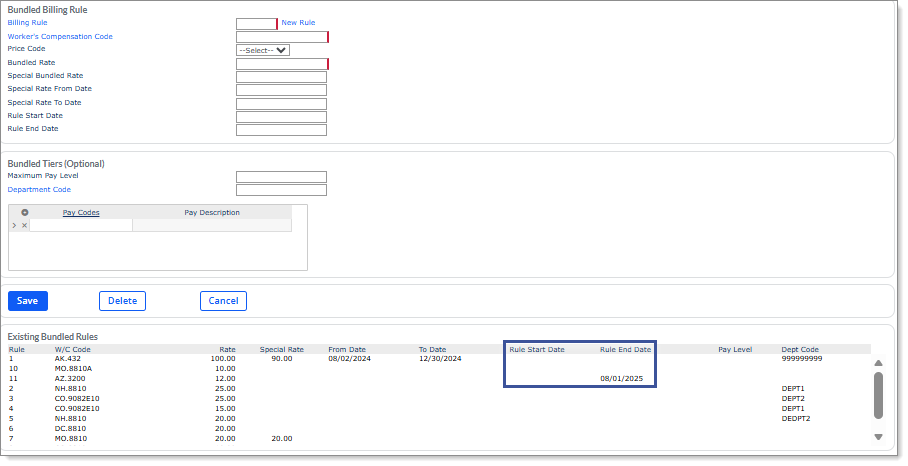
Two new columns, Rule Start Date and Rule End Date, now display in the Existing Bundled Rules panel on the Billing Rules (Bundled) form. For example:
The Rule Start Date and Rule End Date columns display the date when the existing bundled rule begins and ends. |
For more information, see Using Bundled Billing Rules. |
||||||||||||||||||||||||||||||||||||||||||||||||||||||||||||
|
PD-17943 |
Client |
Enhancement to Invoices Form |
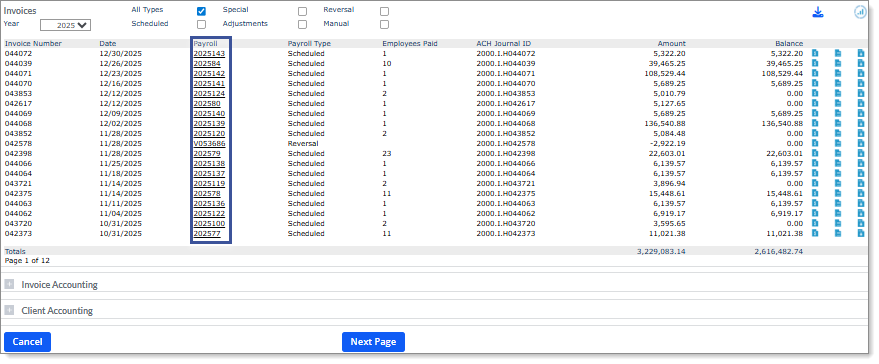
You can now access payroll voucher details directly on the Payroll Summary form by clicking the payroll number in the Payroll column on the Invoices form. For example:
Note the following:
|
For more information, see Reviewing Invoice Information. |
||||||||||||||||||||||||||||||||||||||||||||||||||||||||||||
|
PD-19603 and PD-20266 |
Client |
Enhancements to Custom Features Form |
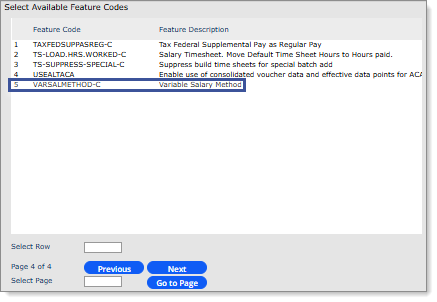
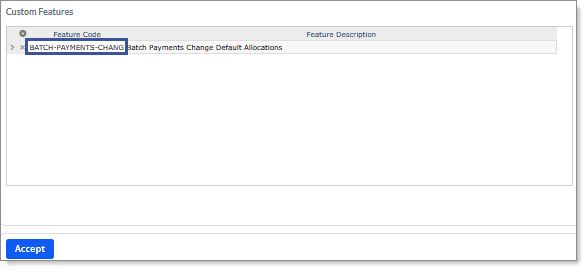
The following enhancements are now available on the Custom Features form:
|
For more information, see Specifying Client Custom Feature Codes and Entering Multiple Fixed, Pre-calculated Payments. |
||||||||||||||||||||||||||||||||||||||||||||||||||||||||||||
|
PD-20289 |
Client |
Enhancement to Client Details Form |
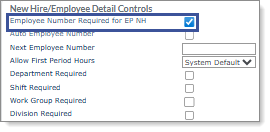
The Employee Numbers Used field, which displays in the New Hire/Employee Detail Controls panel on the Control tab in the Client Details form, now displays as Employee Number Required for EP NH. For example:
|
For more information, see Setting Client Control Parameters. |
||||||||||||||||||||||||||||||||||||||||||||||||||||||||||||
|
PD-20423 |
Client |
Enhancement to Auto Holiday Pay Form |
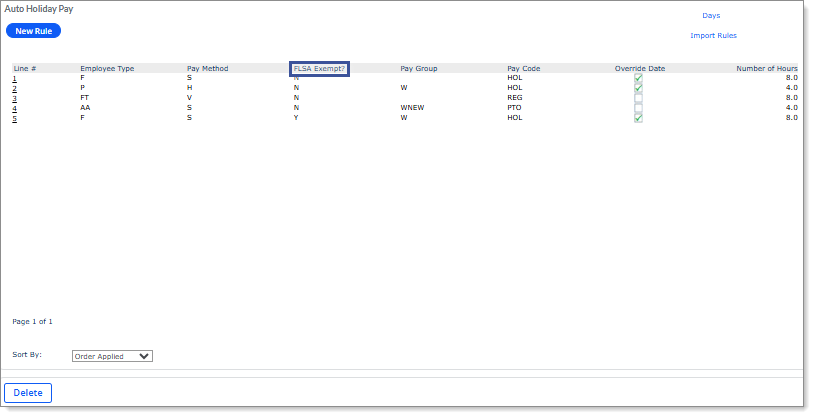
Previously, the FLSA Exempt? column name on the Auto Holiday Pay form was spelled incorrectly. This column name now displays correctly. For example:
|
For more information, see Adding Auto Holiday Pay. |
||||||||||||||||||||||||||||||||||||||||||||||||||||||||||||
|
WSP-2434, WSP-2435, WSP-2436, and WSP-2438 |
Client |
Enhancement to PTO Auto-Enrollment Rules Maintenance Form |
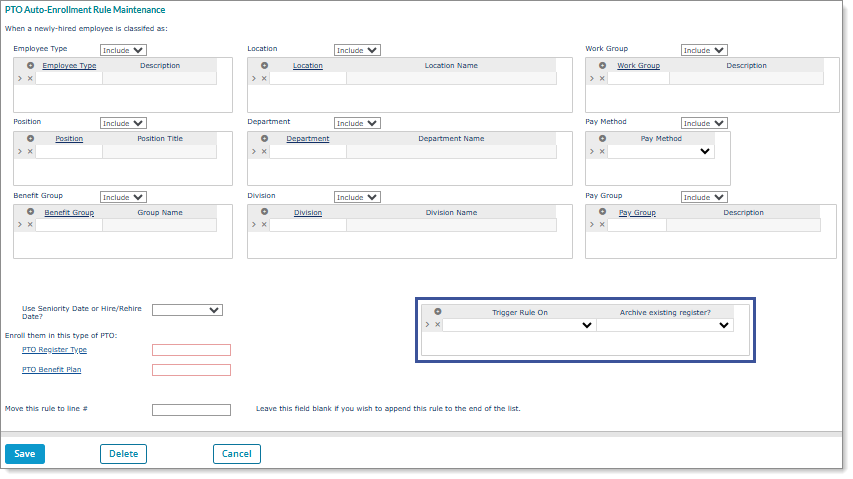
Two new fields, Trigger Rule On and Archive existing register?, now display on the PTO Auto-Enrollment Rules Maintenance form. (You can access this form by clicking New Rule in the PTO Auto Enroll Rules form.) For example:
These new fields do the following:
Note the following:
When a PTO auto-enroll rule is configured with the Status/Type Change setting and an employee status/type change occurs, the following happens: If the change date matches or is prior to the system date and there are no required approvals:
The system does not update the PTO Register and does not make any changes in the following scenarios:
Note: When multiple PTO auto-enroll rules for the same PTO class are set to trigger during the Status/Type Change process, the system evaluates and enforces the rules by Rule Number order. Therefore, if an employee meets the criteria for a rule, the evaluation of all other rules for the same PTO class stops and the process moves on to evaluate any other PTO classes represented in the PTO auto-enroll rules. When a PTO auto-enroll rule is configured with the Position Change setting and an employee position change occurs, the following happens: If the change date matches or is prior to the system date and there are no required approvals:
The system does not update the PTO Register and does not make any changes in the following scenarios:
Note: When multiple PTO auto-enroll rules for the same PTO class are set to trigger during the Position Change process, the system evaluates and enforces the rules by Rule Number order. Therefore, if an employee meets the criteria for a rule, the evaluation of all other rules for the same PTO class stops and the process moves on to evaluate any other PTO classes represented in the PTO auto-enroll rules. |
For more information, see Specifying Time Off Auto-enroll Rules. |
||||||||||||||||||||||||||||||||||||||||||||||||||||||||||||
|
WSP-2437 |
Client |
Enhancement to PTO Auto Enroll Rules Form |
The system now re-evaluates PTO auto-enroll rules and executes enrollments in the PTO Auto Enroll Rules form for current or past-dated Status/Type and Position changes that require approvals, which is helpful to users managing PTO enrollments. When an approval is approved for an applicable change, if the change date matches the system date or a prior date the following occurs:
Note the following:
|
For more information, see Specifying Time Off Auto-enroll Rules. |
||||||||||||||||||||||||||||||||||||||||||||||||||||||||||||
|
WSP-2489 |
Client |
Enhancement to PTO Auto-Enrollment Rules Import Form |
In association with the new fields that display on the PTO Auto-Enrollment Rules Maintenance form (see Enhancement to PTO Auto-Enrollment Rules Maintenance Form), two new columns, Trigger Rule On and Archive Existing Register, now display in the import spreadsheet on the PTO Auto-Enrollment Rules Import form. These new columns indicate the following:
Note the following:
|
For more information, see Importing Time Off Auto-enrollment Rules. |
||||||||||||||||||||||||||||||||||||||||||||||||||||||||||||
|
WSP-2829 |
Client |
Enhancement to PTO Benefit Plans Form |
The system now expires carryover expiration hours set in the PTO Benefit Plans form using year-end date functionality. Therefore, time off hours used after the expiration date do not count towards the carryover balance. (Previously, carryover expiration hours only expired when the system processed the payroll with the pay period start date included.) |
For more information, see Defining Time Off Plans. |
||||||||||||||||||||||||||||||||||||||||||||||||||||||||||||
|
PD-18333, PD-20426, and WSP-2917 |
Human Resources |
Enhancements to Employee Details Form |
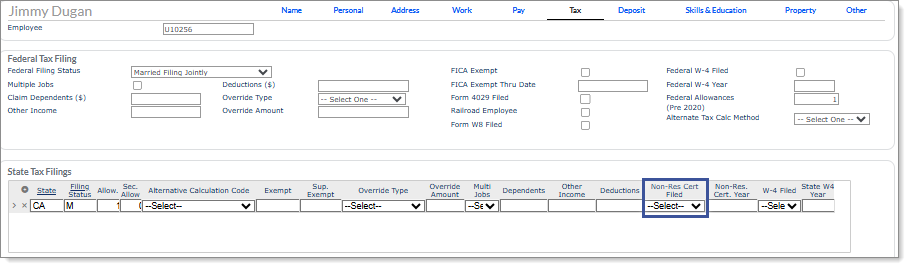
The following enhancements are now available on the Employee Details form:
|
For more information, see Maintaining an Employee's Personal Information and Establishing Employee Tax Information. |
||||||||||||||||||||||||||||||||||||||||||||||||||||||||||||
|
PD-20280 |
Human Resources |
Enhancement to Employee Details and Employee Voucher Forms |
Information for the following fields on the Employee Details and Employee Voucher forms no longer displays after an employee is deidentified using the Inactive Data Deletion form:
Deposit tab on Employee Details form:
Banking tab on Employee Voucher form:
|
For more information, see Depositing All or Part of Employee's Net Payment and Reviewing Banking Tab Details. |
||||||||||||||||||||||||||||||||||||||||||||||||||||||||||||
|
PD-20438 |
Human Resources |
Enhancement to Emergency Contact Report |
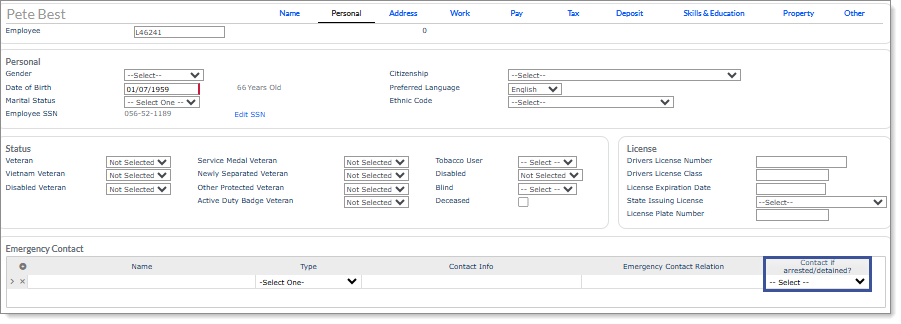
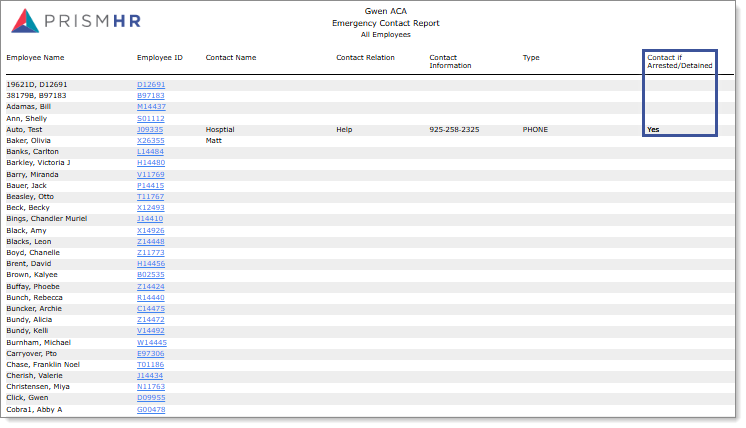
A new column, Contact If Arrested/Detained, now displays in the output after running the Emergency Contact Report. For example:
The Contact If Arrested/Detained column indicates whether the employee's emergency contact will be contacted in case of the employee's arrest/detainment on the worksite. (This option is set in the Contact if arrested/detained? field on the Personal tab in the Employee Details form.) |
For more information, see Emergency Contact Report. |
||||||||||||||||||||||||||||||||||||||||||||||||||||||||||||
|
WSP-3062 |
Human Resources |
Enhancement to Approvals Pending Form |
The system no longer cuts off long comments and now ignores carriage returns and wraps text that displays in the Comments field when you open a pending approval on the Approvals Pending form. |
For more information, see Working with Pending Approvals. |
||||||||||||||||||||||||||||||||||||||||||||||||||||||||||||
|
WSP-2839, WSP-2840, WSP-2841, WSP-2842, WSP-3162, and WSP-3163 |
New Employee Import |
Enhancement to New Employee Import Dashboard |
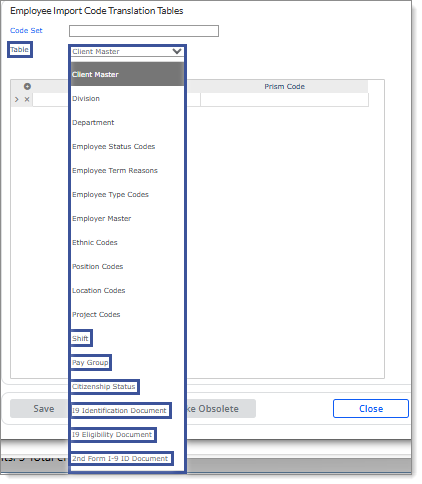
Six new options, Shift, Pay Group, Citizenship Status, I9 Identification Document, I9 Eligibility Document, and 2nd Form I-9 ID Document, are now available in the Table field on the Employee Import Code Translation Tables form, which you can access by selecting Code Translation Tables on the New Employee Import dashboard. For example:
These options do the following:
|
For more information, see Managing Code Translations and Import Field Mappings. |
||||||||||||||||||||||||||||||||||||||||||||||||||||||||||||
|
PD-18969 |
Payroll |
Enhancement to Pay Period PTO Report Form |
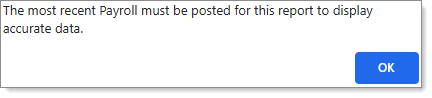
The warning message that displays when you access the Pay Period PTO Report form now displays as follows: For example:
Note: This warning message helps remind users that they must run the most recent payroll to ensure the system posts accurate data in this report. |
For more information, see Pay Period PTO Report. |
||||||||||||||||||||||||||||||||||||||||||||||||||||||||||||
|
PD-19014 |
Payroll |
Enhancement to Billing Voucher Detail Form |
The Project Phase now displays on the Client Accounting panel on the Billing Voucher DetailVoucher tab when Project Phase tracking is in use and Overtime hours are reported separately using the Premium Pay Code and the Double Time Premium Pay Code, which is set up in the FLSA Ruleset used by the client. Note: You can access the Voucher tab by selecting a Voucher on the Payroll Billing Summary form. After selecting the Voucher, the Billing Voucher Detail form displays. Expand the Client Accounting panel to view the information. |
For more information, see Voucher Tab and FLSA Ruleset. |
||||||||||||||||||||||||||||||||||||||||||||||||||||||||||||
|
PD-19024 and PD-19027 |
Payroll |
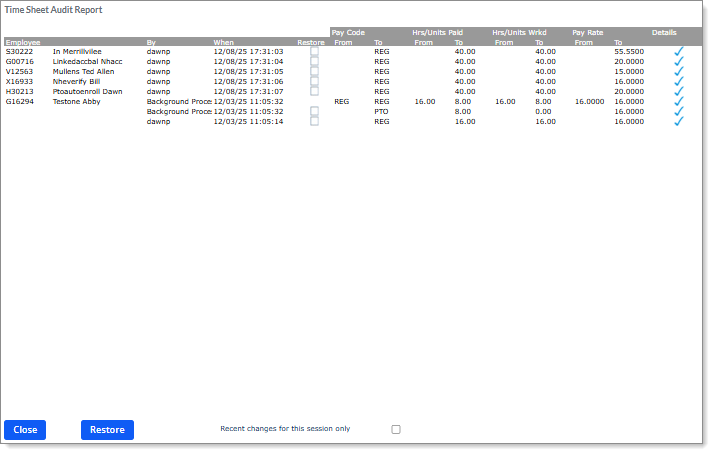
Enhancement to Time Sheet Audit Report Form |
The Time Sheet Audit Report form, which you can access by selecting Audit on the Actions menu in the Time Sheet Entry form, now displays the following updates:
For example:
|
For more information, see Restoring Recently Changed Information. |
||||||||||||||||||||||||||||||||||||||||||||||||||||||||||||
|
PD-19596 |
Payroll |
Enhancement to Client Allocation Formats Form |
The Header Column that displays when you select Add Column and update header lines in the Client Allocation Formats form now reflects the correct value. (Previously, the system sometimes overwrote the prior column header when users added a new column to a client allocation format.) |
For more information, see Setting Client Allocation Formats. |
||||||||||||||||||||||||||||||||||||||||||||||||||||||||||||
|
PD-19681 |
Payroll |
Enhancement to Add Employees to Payroll Form |
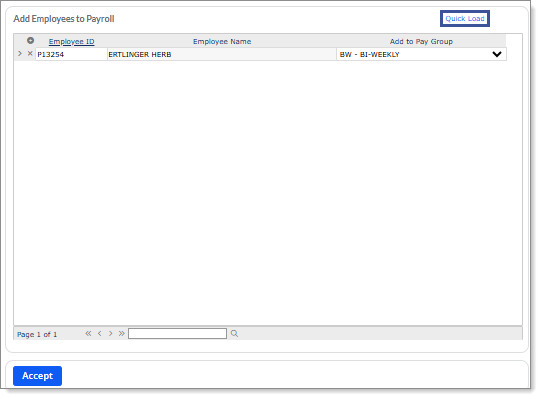
A new link, Quick Load, now displays on the Add Employees to Payroll form. For example:
Note: You can access the Add Employees to Payroll form by selecting Add Employees to Payroll on the Actions menu in the Payroll Control form. Selecting Quick Load opens the new Regular Payroll Control Quick Load form, where you can add multiple employees to a pay group at once. (See New Regular Payroll Control Quick Load Form.) |
For more information, see Adding Employees to a Payroll. |
||||||||||||||||||||||||||||||||||||||||||||||||||||||||||||
|
PD-19999 and PD-20000 |
Payroll |
Enhancements to Pay Codes Form |
The following enhancements now reside on the Pay Codes form:
|
For more information, see Working with Pay Codes. |
||||||||||||||||||||||||||||||||||||||||||||||||||||||||||||
|
PD-20145 and PD-20407 |
Payroll |
Enhancement to Payments Pending Form |
New filters are now available on the Payments Pending form to help you narrow the search for payments you need to process. For example:
Note the following:
|
For more information, see Listing Pending Payments. |
||||||||||||||||||||||||||||||||||||||||||||||||||||||||||||
|
PD-20248, PD-20250, and PD-20266 |
Payroll |
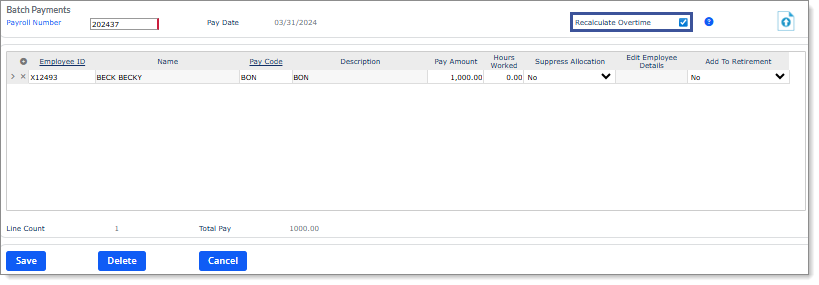
Enhancements to Batch Payments Form |
The following enhancements are now available on the Batch Payments form:
|
For more information, see Entering Multiple Fixed, Pre-calculated Payments. |
||||||||||||||||||||||||||||||||||||||||||||||||||||||||||||
|
PD-20331 |
Payroll |
Enhancement to SuperBatch Form |
The text "Wire transfer created" now displays when you cursor over the For example:
|
For more information, see Using SuperBatch and Understanding the SuperBatch Status Icons. |
||||||||||||||||||||||||||||||||||||||||||||||||||||||||||||
|
PD-20338 |
Payroll |
Enhancement to Detail Time Sheet Entry Form |
The system now recognizes when the parameters for a Position are set to Service Provider for the User Access and the Hidden option is set to Yes on the Time Sheet tab in the Client Details form, so worksite managers and worksite trusted advisors are now unable to view or update an employee's Position Code in the Detail Time Sheet Entry form. |
For more information, see Making Detail Time Sheet Entries. |
||||||||||||||||||||||||||||||||||||||||||||||||||||||||||||
|
PD-20368, WSP-3011, and WSP-3040 |
Payroll |
Enhancements to Payroll Options Form |
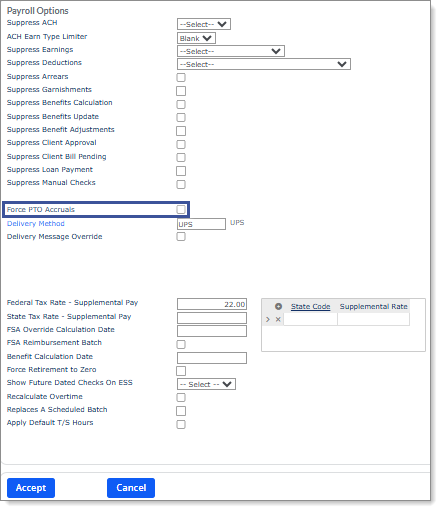
The following enhancements are now available on the Payroll Options form:
|
For more information, see Setting Special Processing Options. |
||||||||||||||||||||||||||||||||||||||||||||||||||||||||||||
|
PD-20430 and PD-20431 |
Payroll |
Enhancements to Data Import Tool |
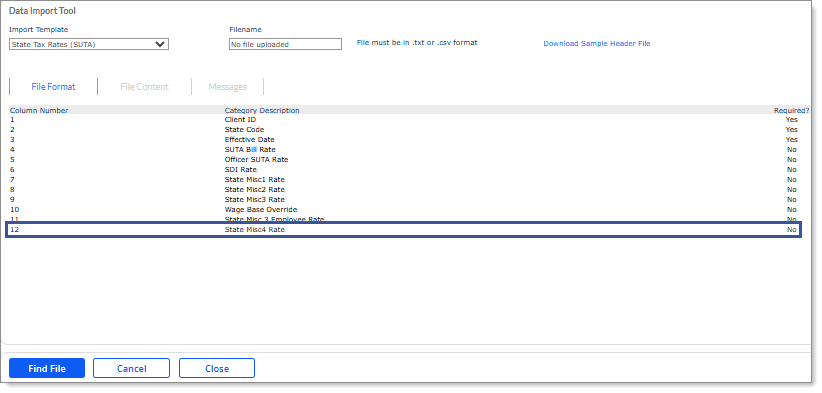
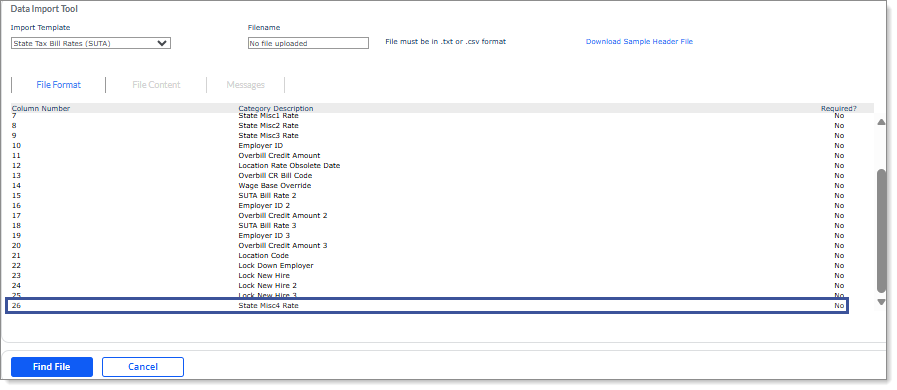
The following enhancements now reside in the Data Import Tool:
|
For more information, see Importing State Tax Bill Rates (SUTA). |
||||||||||||||||||||||||||||||||||||||||||||||||||||||||||||
|
WSP-2905 and WSP-3020 |
Payroll |
Enhancements to Payroll Check Register Form |
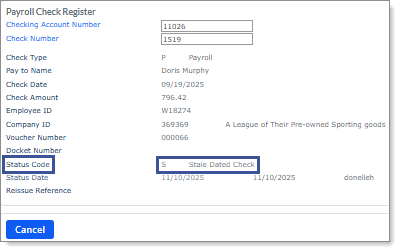
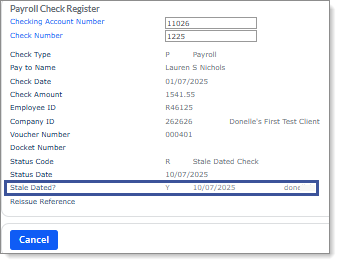
The following enhancements are now available on the Payroll Check Register form:
|
For more information, see Viewing Payroll Check Register. |
||||||||||||||||||||||||||||||||||||||||||||||||||||||||||||
|
WSP-3051 and WSP-3052 |
Payroll |
Enhancement to Client Check Register Report Form |
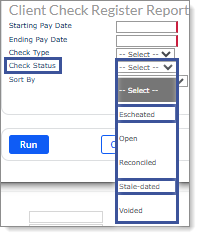
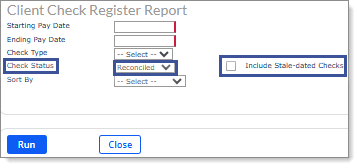
Two new options, Escheated and Stale-dated, now display in the Check Status field on the Client Check Register Report form. For example:
These options do the following:
In association with these new options, a new field, Include Stale-dated Checks, now displays when you select the Reconciled option in the Check Status field. For example:
You can enable Include Stale-dated Checks to include stale-dated checks when you run a reconciled check report. |
For more information, see Client Check Register Report. |
||||||||||||||||||||||||||||||||||||||||||||||||||||||||||||
|
PD-19409 |
PTO |
Enhancement to Add Time Off Type Form |
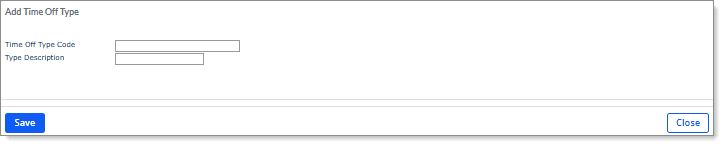
The Delete button no longer displays on the Add Time Off Type form, which is part of the Time Off Setup Workflow process. For example:
Note: The Delete button isn't necessary because you cannot delete an existing Time Off Type Code. (If you need to update an existing type, click the pencil icon ( |
For more information, see Setting Time Off Plan Type. |
||||||||||||||||||||||||||||||||||||||||||||||||||||||||||||
|
PD-20212 |
PTO |
Enhancement to Confirmation Form |
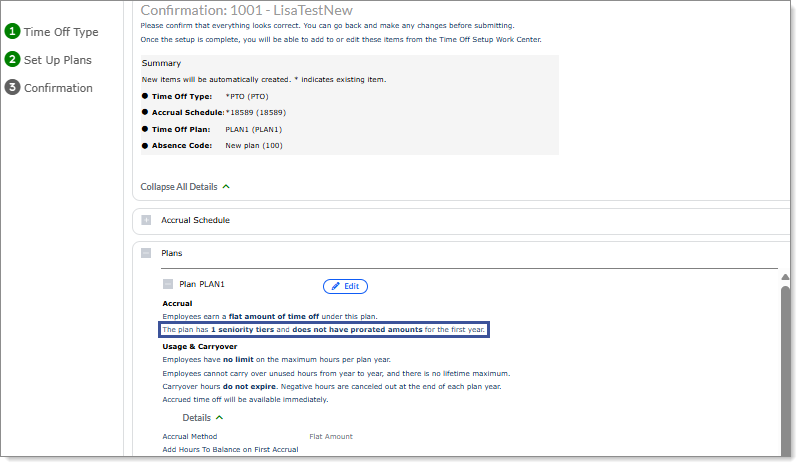
When there are no First Year prorated amounts, the message that displays in the Accrual field in the Plans panel on the Confirmation form, which is step 3 in the Time Off Workflow Setup process, was updated to provide more clarity, "The plan has <number of rows in multi-value grid> seniority tiers and does not have prorated amounts for the first year." For example:
|
For more information, see Confirming Time Off Plan Settings. |
||||||||||||||||||||||||||||||||||||||||||||||||||||||||||||
|
PD-20214 |
PTO |
Enhancement to Time Off Setup Workflow Form |
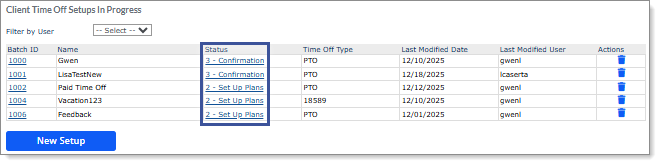
A link to proceed to the time off plan's current step now displays in the Status column on the Time Off Setup Workflow form. For example:
Clicking a link in the Status column proceeds to the step in the Time Off Setup Workflow process based on the plan's setup progress:
|
For more information, see Setting Up Time Off Plans. |
||||||||||||||||||||||||||||||||||||||||||||||||||||||||||||
|
WSP-3069 |
PTO |
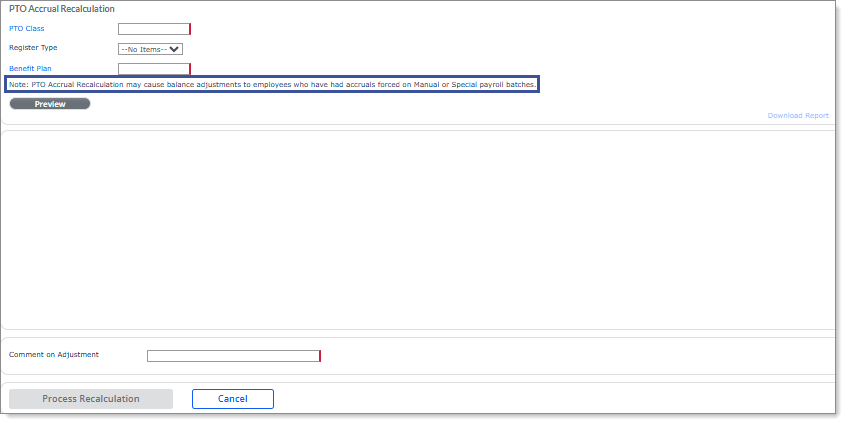
Enhancement to PTO Accrual Recalculation Form |
A new note now displays on the PTO Accrual Recalculation form. For example:
This note warns that using the accrual recalculation tool might adversely impact employees who have forced PTO accrual on manual or special batches, so you can make an informed decision on whether to use this tool. Important! At this time, the note is a preparatory warning because the system functionality to force PTO accruals on manual or special payrolls will be included in a future release. |
For more information, see Recalculating PTO Accruals. |
||||||||||||||||||||||||||||||||||||||||||||||||||||||||||||
|
PD-18101 |
System |
Enhancement to PTO Absence Codes and Time Off Setup Workflow Forms |
Previously, an issue occurred when an employee was enrolled in two registers and an absence code was not set up correctly, but the employee had leave on a timesheet for a different PTO Register with an absence code that was setup correctly. To resolve this issue, enhancements were made in the following scenarios, so users cannot save entries on the PTO Absence Codes form or proceed to step 3, Confirmation, in the Time Off Setup Workflow process, as confirmed by the error message that displays:
|
For more information, see Creating Time Off Absence Codes and Confirming Time Off Plan Settings. |
||||||||||||||||||||||||||||||||||||||||||||||||||||||||||||
|
PD-18439 |
System |
Enhancement to Role Maintenance Form |
The system now recognizes case structure when creating a new user role in the Role Maintenance form, which compares new role entries against existing roles. For example, you cannot create or copy the user role glsp if the user role GLSP already exists. If you try to create or copy a new user role using a different case structure of an existing role, an error message now displays. For example:
Note: You can access the Role Maintenance form by selecting New Role on the Actions menu in the User Roles form. |
For more information, see Creating a New Role. |
||||||||||||||||||||||||||||||||||||||||||||||||||||||||||||
|
PD-18854, PD-19685, and PD-20266 |
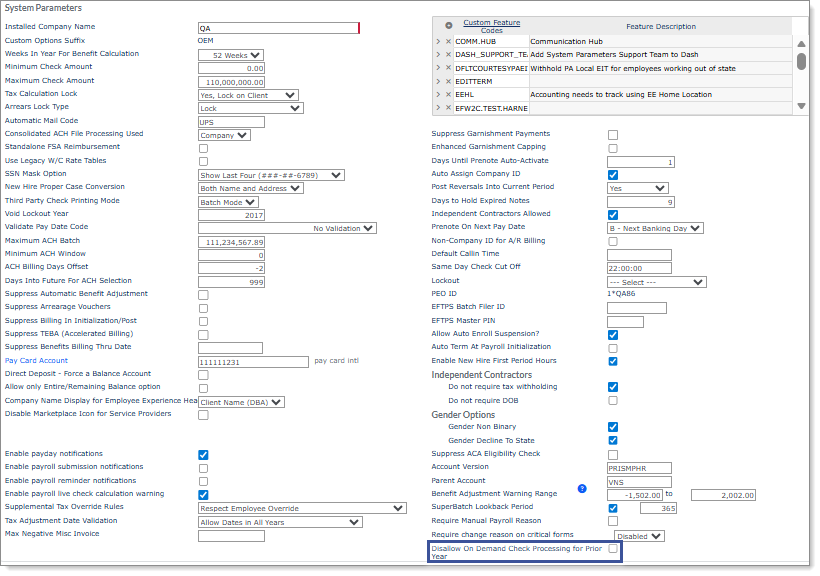
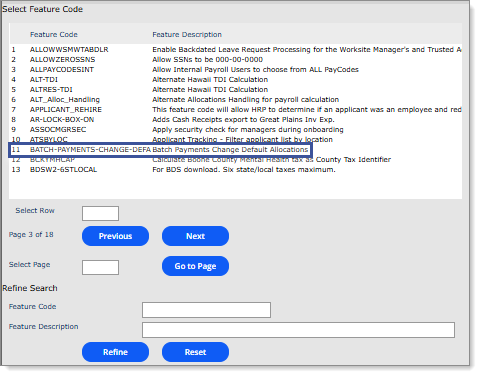
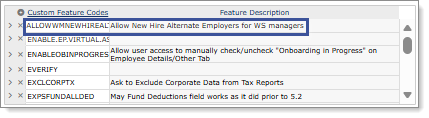
System |
Enhancements to System Parameters Form |
The following enhancements are now available on the System Parameters form:
|
For more information, see Setting General System Parameters and Using Custom Feature Codes. |
||||||||||||||||||||||||||||||||||||||||||||||||||||||||||||
|
PD-20022, PD-20023, and PD-20024 |
System |
Enhancement to Email Services Form |
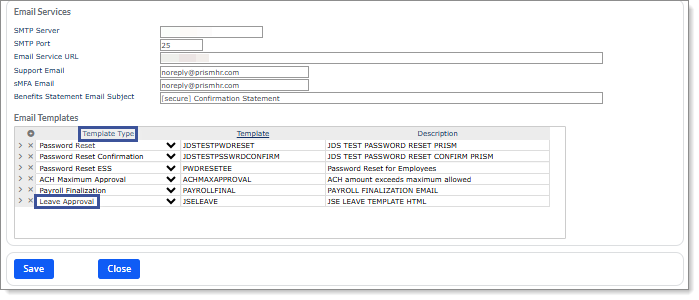
A new email template type, Leave Approval, is now available on the Email Services form. For example:
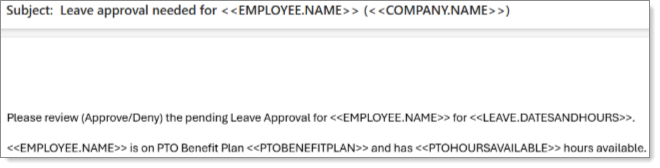
You can use the Leave Approval template type to create an automatic email message that an employee's leave is ready for approval. Note the following:
|
For more information, see Setting Up Automated Email Messages. |
||||||||||||||||||||||||||||||||||||||||||||||||||||||||||||
|
PD-20245 |
System |
Enhancement to User Roles Report Form |
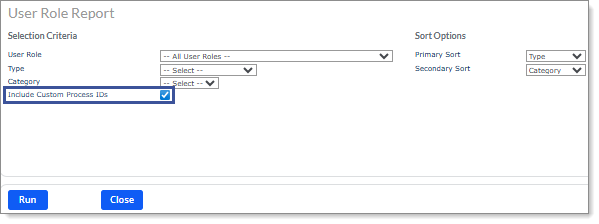
A new field, Include Custom Process IDs, now displays on the User Roles Report form. For example:
Enabling Include Custom Process IDs includes all custom process IDs assigned to the User Roles on the report. |
For more information, see Determining User Role Details Display. |
||||||||||||||||||||||||||||||||||||||||||||||||||||||||||||
|
PP-2050 |
System |
Enhancement to Search Results Style |
The search results for the main Prism search bar have been updated to be consistent to other search styles throughout the software. |
For more information, see the in-app help. |
||||||||||||||||||||||||||||||||||||||||||||||||||||||||||||
|
WSP-2899 |
System |
Enhancement to Print Service Global Check Parameters Form |
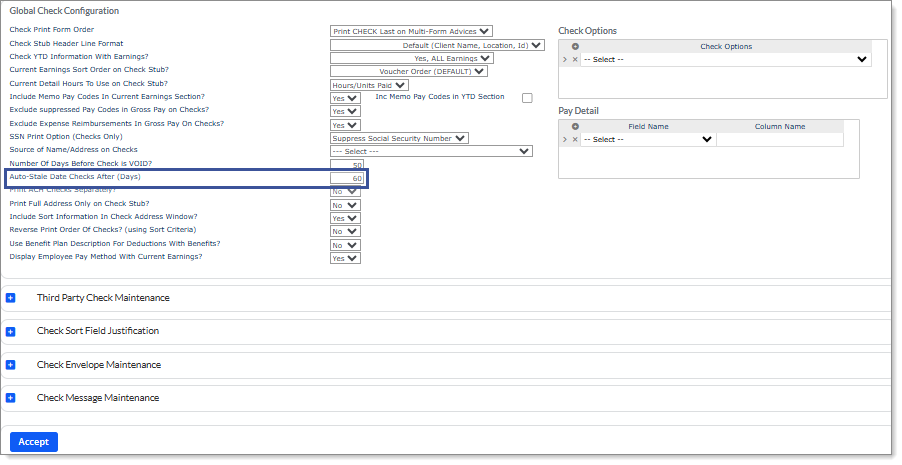
A new field, Auto-Stale Date Checks After (Days), now displays on the Print Service Global Check Parameters form. For example:
Note: This feature is only available for service providers. You can use the Auto-Stale Date Checks After (Days) field to configure, at the system level, the number of days before the system automatically updates a Payroll Check to the status of Stale-Dated. |
For more information, see Setting Up Default Global Check Printing Parameters. |

 ) now displays next to the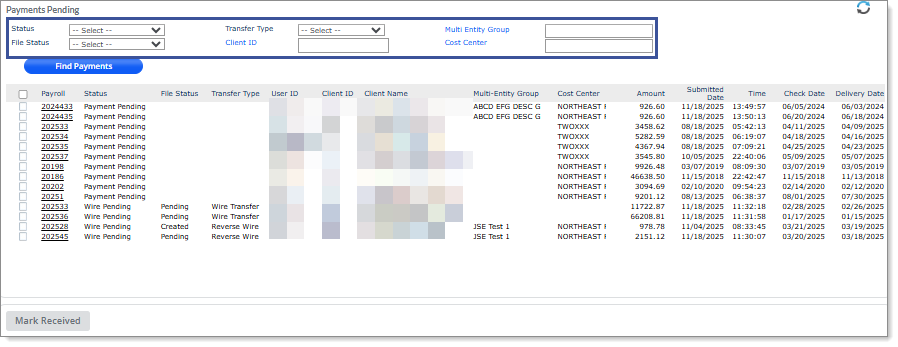
 icon in the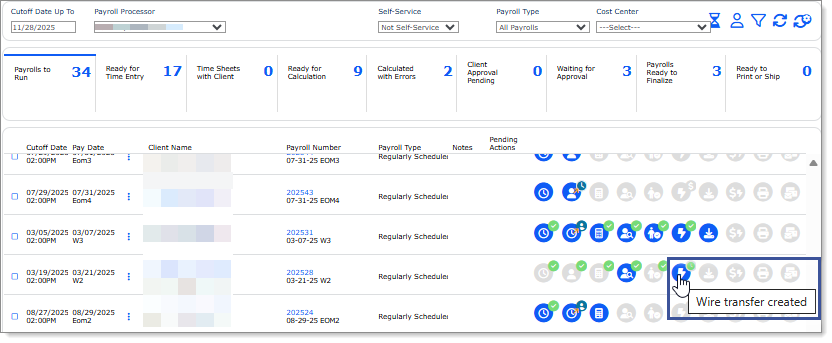
 ).)
).)

Fixes
Benefits Administration (BA) Fixes
| Jira # | Issue Summary | Resolution |
|---|---|---|
|
WSP-2921 |
Previously, on the Retirement Plan Enrollment form, under the Election Details section, when you deleted an Effective Date, the system deleted the prior records data available for employee contributions. |
Now, this is fixed. |
|
WSP-2932 |
On the Benefit Plan Setup form, when you set a benefit plan for an employee with the One Month Prepay and the Auto Enrollment fields checked, then the system created Benefit Adjustments records, which was an incorrect behavior. |
Now, this is fixed. |
|
WSP-2937 |
Previously, while using the Next Gen FSA/HSA Enrollment Posting Import Definition Template on the Benefits Import form, the importing of an election update caused the system to overwrite the Plan Year To Date Deductions and Funded Balance from one account to the other account on the Employee Flexible Spending Accounts form. |
Now, this is fixed. |
|
WSP-2938 |
Previously, on Retirement Match Rules form, there was some confusion with the logic for calculation of Matching Contribution displayed on the employee's payroll voucher. |
Now, this is fixed. A help text icon now displays explaining the Match Layers logic next to the Layered Match Rules section on the Retirement Match Rules form when the Match Logic Type is selected as Layered. |
|
WSP-2997 |
Previously, the Retirement Plan Enrollment form had tab order issues. |
This is fixed. The tab order now flows through each section in the correct sequence. Additionally, the tab order does not go to the hyperlink form buttons of Import Retirement Plan Adjustments and View Employee Retirement Plan Register. |
|
WSP-2998 |
Previously, on the Retirement Plan Enrollment form, the Effective Date under the Election Details section was not displayed when the browser was resized down. |
Now, this is fixed. |
|
WSP-3028 |
Previously, there were issues while importing benefit rules to a benefit group for specific plans that were added to the benefit groups. |
Now, this is fixed. |
|
WSP-3066 |
Previously, on the Group Benefit Plans form, when you expanded all the sections for a benefit plan and then tried creating a new plan, the sections remained expanded, which was an incorrect behavior. |
Now, this is fixed. |
|
WSP-3067 |
Previously, when an employee had an existing pre-tax retirement plan election and the Employee Deferral Deduction Code was flagged to Prohibit Deductions then while running a payroll, the payroll warning was not triggered. |
Now, this is fixed. |
|
WSP-3107 |
Previously, on the Benefit Adjustments form, the Benefit Plan ID changed while adjusting an existing benefit adjustment. |
Now, this is fixed. |
| WSP-3142 | Previously, when you entered a future dated Benefit Salary where current day was prior to the Benefit Salary change and the pay date was after the future dated Benefit Salary, then the payroll process did not automatically create a new coverage detail Effective Date. Additionally, for Benefits Enrollment, if the Open Enrollment effective date was equal to or after the future dated Benefit Salary, then the system displayed incorrect rates. However, if the current day was equal to or after the future dated Benefit Salary, the payroll process updated the existing coverage detail effective date with the correct coverage and premium amounts. | Now, this is fixed. |
| WSP-3257 | Previously, on the Group Benefit Plans form, when you selected a Benefit Plan, then under the Age Parameters section, in the Age Calculation (Month/Day) field, when you selected non-Month/Day option, the system displayed an error message, which was an incorrect behavior. | Now, this is fixed. The validation message is displayed only if you select a valid month (January-December) and do not select a Day against the selected month. |
Compliance (CMP) Fixes
| Ticket | Issue Summary | Resolution | |||||||||||||||
|---|---|---|---|---|---|---|---|---|---|---|---|---|---|---|---|---|---|
| CMP-3696 | Previously, when an employee who was not a resident of the District Of Columbia submitted the D-4A Certificate of Nonresidence, it did not update the information on the Tax tab on the Employee Details form. | Now, an employee who is not a resident of the District Of Columbia when submits a D-4A Certificate of Nonresidence in the District of Columbia, this information will populate in PrismHR both during onboarding as well as in Employee Portal. | |||||||||||||||
| CMP-4770 | Previously, when Form W-2s were generated before tax adjustments were applied, then the Form W-2 had to be manually deleted because the Create W2 process did not update to zero. | Now, previously created Form W-2s will update to zero when all taxable earnings and tax amounts are reduced to zero. | |||||||||||||||
| CMP-6203 | Previously, PrismHR was not correctly recalculating billing taxes on vouchers for the Miscellaneous Taxes when the tax rate is less than, equal to, or greater than 1.00. | Now, this is resolved. | |||||||||||||||
| CMP-6577 | Previously, when an override rate was entered at the Employer or Client Level for PFML, it did not populate in the PTS file on the 210 records, positions 71-76 for CT, DC, MA and MN. | Now, this is resolved. | |||||||||||||||
|
CMP-6836 |
Previously, the system did not treat Group-Term Life Insurance wages as taxable for Detroit like any other Michigan local taxes. |
Now, Group-Term Life Insurance wages will be taxable for Detroit like any other Michigan local taxes under the following Michigan local tax codes:
|
|||||||||||||||
|
CMP-6842 |
Previously, in some scenarios, for the city of Aurora, Colorado, PrismHRwas still withholding Occupational Privilege Tax (OPT) resulting in incorrect taxation when as of January 1, 2025, the City of Aurora, Colorado, no longer had an Occupational Privilege Tax (OPT). |
Now, this is resolved. |
|||||||||||||||
|
CMP-6945 |
Previously, the PrismHR Tax Quarterly JSON file incorrectly reported the Gross Wages as Taxable Wages for SUI. |
Now, this is resolved. |
|||||||||||||||
|
CMP-6962 |
Previously, the WH347 Report form could only be run for a single project. |
Now, for January 2025 onwards, the WH347 Report form will generate reports for all projects with payroll data for the week ending date when more than two projects are listed, regardless of whether all projects have payroll data. Also, if an invalid project is entered, upon tab or enter(or run), an error message will pop up stating Record [<Client ID>.<Project Code>] is not on file [PROJ.WORK.CODES]. |
|||||||||||||||
|
CMP-6984 |
Previously, in the Mastertax RTS Q4 616 record, only one tax code was reported instead of the combined amount of all tax codes reported in boxes 18-20 on the Form W-2 for New York City localities. |
Now, this is resolved. |
|||||||||||||||
|
CMP-6985 |
Previously, when the custom feature code MCTAXCALC was enabled for a client on their Custom Features form, then the second and subsequent payrolls for the same pay period was failing for an employee who resided in a state that did not require a filing status. |
Now, this is resolved. |
|||||||||||||||
|
CMP-6987 |
Previously, though the wage reporting for Delaware and Maine PFML on the MasterTax RTS was correct, however, the tax code configuration on the 500 records for these states were not updated to align with the structure used for other PFML reporting, such as Colorado and Massachusetts. The MasterTax RTS did not include the 500 and 501 record for the tax code. |
Now, in MasterTax RTS for the employee PFML for Delaware and Maine:
This will be consistent with the PFML reporting for other states, such as Colorado and Massachusetts. |
|||||||||||||||
|
CMP-7007 |
Previously, when an employee's worksite location was a Remote Location, the SUTA billing used the accrual rates and did not recognize the Client State Bill Rates or Wage Base Override. |
Now, when an employee's worksite location is a Remote Location, the SUTA billing rate and Wage Base Override set on the State Bill Rates (SUTA) form for the employee’s resident state will be used for the Taxable Billing. |
|||||||||||||||
|
CMP-7028 |
Previously, for an ASA client, on the Tax Deductions form if a redirected tax code was set to Calculate/Report at Client level (PEO's Only), then that redirected tax code incorrectly displayed a Tax Basis of C instead of P on the employee payroll voucher. |
Now, this is resolved. |
|||||||||||||||
|
CMP-7053 |
Previously, when an employee submitted NY IT-2104 stating Yes, I am a NYC resident, then on the under the Local Tax Filing section under the Tax tab on the Employee Details form, only one tax would populate on the employee tax form (NY, NY). |
Now, when an employee submits the NY IT-2104 stating Yes, I am a NYC resident, then the Local Tax Filing section under the Tax tab on the Employee Details form will show all the five following tax codes that are applicable to NYC:
Note: PrismHR applies a different tax code to the 5 boroughs on NYC that are applicable to the single question on the IT-2104. Only one tax code override will be applied in payroll. |
|||||||||||||||
|
CMP-7100 |
Previously, the employer phone number in the RE record on the EFW2 files contained the dashes in positions 249-263 which was incorrect. |
Now, this is resolved. |
|||||||||||||||
|
CMP-7105 |
Previously, the BDS/Solv W2 Export only allowed up to 6 items for Form W-2 Box 14. |
Now, when an employee has 7 or more items reporting in Box 14 of their W-2, the W-2 Processing / EFW2 & W-2 Exports / BDS/SOLV W-2 Export will create additional lines for the employee to report these items. |
Document Management (DM) Fixes
| Jira # | Issue Summary | Resolution |
|---|---|---|
Employee Portal (EP) Fixes
| Jira # | Issue Summary | Resolution |
|---|---|---|
| EERT-3044 | When two or more employees were added to a payroll in Prism and a manager manually added their time using the Time Sheet Entry form in Portal, an error occurred when a service provider attempted to calculate the payroll and the Charge Date field would display as blank. | This is fixed. |
| EERT-3080 | When an employee viewed their benefits contributions in Employee Portal, the Limited FSA and Dependent Care FSA contributions did not always display correctly. | This is fixed. |
| EERT-3123 | When a manager accessed the View My Employees form in Employee Portal, sometimes employee names displayed as undefined, even though they displayed correctly on the home screen and employee records. | This is fixed. |
| EP-3227 | If an employee attempts to add a 100% account on the Direct Deposit form in Employee Portal and already had a Remainder account, the system produced an error message indicating that the accounts sum to greater than 100% and did not save the change. | This message has been fixed to indicate that the employee cannot have a Remainder account record and another account with 100% at the same time. |
|
EP-9545 |
When an employee changed their retirement contributions status to Inactive, the Retirement Summary form in Employee Portal still displayed their original retirement contribution amounts. |
This is fixed. |
|
EP-9877 |
When a user viewed the Template History form for a Configuration Template, changes made on the new dashboard layout did not display on the audit log properly. |
This is fixed. |
|
EP-9903 |
When a user attempted to access their documents, and no override or template had been assigned to their client, some document folders did not display correctly. |
This is fixed. |
Identity and Access Management (IAM) Fixes
| Jira # | Issue Summary | Resolution |
|---|---|---|
| IAM-2153 | When a user had multiple profiles, including a Service Provider profile with an IP restriction, the user could not log in using their non-Service Provider profiles, even if the other profiles did not include an IP restriction. | This is fixed. |
| IAM-2474 | When an employee registered through Employee Portal, they would sometimes receive an empty error message. | This is fixed. |
| IAM-2496 | When an employee went through the Forgot Password process, typed in the verification code, and clicked the Verify Code button, next page in the process did not load, and the Forgot Password process could not be completed. | This is fixed. |
Onboarding (OB) Fixes
| Jira # | Issue Summary | Resolution |
|---|---|---|
| EERT-2966 | When the system generated I-9 reminder notification emails, the emails were sent in a single batch all at once instead of over a period of time. | This is fixed. |
| EERT-2967 | When a user clicked Get Employees on the Download Enrollment Statements form and no batch ID was selected, an error occurred. | This is fixed. |
| EERT-3071 | When an employee set their Preferred Language to Spanish, the Per Pay Period Amount on the Benefits Enrollment Confirmation Statement displayed the Per Month value instead of the Per Pay Period value. | This is fixed. |
|
EERT-3089 |
When employees reviewed onboarding documents, documents which did not belong to the client would erroneously display. |
This is fixed. When workflow is created, trace should display either formId and rulesetId, with passes result, or error message, or formId no rule and 'Passes'. |
|
EERT-3096 |
When an employee finished their I-9 record and the manager approved it, the status still displayed as Onboarding In Progress on certain forms. |
This is fixed. |
|
EERT-3127 |
If an error occurred on the I-9 Section 1 form and the employee refreshed the page, the employee was erroneously given the option to continue. If they clicked Continue, the I-9 Section 2 form did not display properly. |
This is fixed. |
|
EERT-3169 |
When a user made changes to a new hire record on the Client Details form, an invalid record would sometimes be created. |
This is fixed. |
|
OBE-8456 |
When an employee elects the same FSA amount as was previously elected during a Life Event and also elects to enroll in a new Flexible Spending Account type, an error occurred. |
This is fixed. |
Prism (PD) Fixes
| Jira # |
Category |
Issue Summary | Resolution |
|---|---|---|---|
|
PD-19217 |
General |
The Tax Calculation Override link did not display on the Tax tab in the Employee Details form when there were Suppressed Taxes, but there were no Income Tax Overrides. |
The Tax Calculation Override link now displays when the employee has at least one record in the Suppress Taxes form or when the Income Tax Override has at least one active override. |
|
PD-19238 |
General |
The system did not display the correct description of the Contact Type for the assigned contact in the Type field in the Contact Information panel on the Account tab in the Client Details form. |
This is fixed. |
|
PD-19417 |
General |
When users enrolled an employee in a PTO Benefit Plan in the PTO Benefit Plans form with a calculation basis of Hours Worked (by Hours) or Hours Worked (by Months), a message displayed even when there was a value for Max per Year, “Warning: no additional hours will be accrued because the initial amount is equal to the maximum accrual of 0.00 hours set up in the PTO benefit plan.” |
The following now happens in these scenarios:
|
|
PP-2072 |
General |
When a user performed a search in the Prism menu, the search did not return results that appeared in parentheses. For example, searching for "unbundled" would not return the Billing Rules (Unbundled) form. |
This is fixed. |
|
PP-2101 |
General |
When a user accessed the demo version of the PrismHR UI, the background color of the home screen obscured the version number. |
This is fixed. |
|
PP-2102 |
General |
When a user accessed the Actions menu on the Code Descriptions Overrides form, two options labeled "Audit" displayed. In addition, clicking either of these options without any audits selected on the form produced an error message. |
This is fixed. |
|
PP-2117 |
General |
When a user had access to only one account, the Account Selection logo still displayed on the PrismHR menu. |
This is fixed. The logo is now transparent when the user has access to only one account. |
|
PP-2125 |
General |
When a user had 0 messages or approvals, the Messages icon and the Approvals icon would show a red "0" notification on the PrismHR menu. |
This is fixed. When the user has zero messages or approvals, the corresponding icons do not display a red notification. |
|
RRT-6666 |
General |
When users selected the Tiered Per Employee Per Pay Period option as the Unbundled Billing rule basis in the Billing Rules (Unbundled) form, the system did not count employees with a status classification of Active in the employee count to determine the Tier Level rate per employee. |
This is fixed. |
|
WSP-1653 |
General |
When users navigated between clients while on the PTO Auto Enroll Rules form and then clicked New Rule, the system displayed the last-used existing rule instead of creating a new rule. |
In this scenario, clicking New Rule now opens the PTO Auto-Enrollment Rules Maintenance form, which displays blank fields. |
|
WSP-2906 |
General |
When users removed checks with the MVG "x" in a row while using the Stale Check Reconciliation form to load checks into the MVG, the system incorrectly updated the Checks Total calculation. |
The system now accurately reduces the Checks Total to reflect the total amount of the Check Amount column for all rows in the MVG when users remove rows from the Stale Check Reconciliation MVG. |
| WSP-2929 |
General |
The system sorted payroll numbers on the Batch Number (left-justified) by default on the Select Payroll Number list in the Benefits Billing Detail Report form. (The Select Payroll Number list displays when you select Payroll Number after choosing Select Batch ID in the Defined Ranges field.) | The system now sorts payroll numbers by Pay Date, descending from most recent, by default in the Select Payroll Number list. |
|
WSP-3128 |
General |
Users sometimes experienced long delays waiting for the system to generate results when they ran the ACH Journal Edits Audit Report and the ACH Journal Hold/Release Report. |
The ACH Journal Edits Audit Report and the ACH Journal Hold/Release Report now use an updated process, so they run more efficiently. |
|
PD-19066 |
Payroll |
The system included empty columns in the XLS output produced by the Labor Distribution Report. |
This is fixed. |
|
PD-19610 |
Payroll |
The system did not include the right angle bracket (>) in the STDMEMO column in the Global Accounting Custom Layout on the PEO Client Accounting and System Parameters forms. (When the file was created, the system populated this type with <<STDMEMO> instead of resolving to the standard name.) |
The following now happens:
|
|
PD-20422 |
Payroll |
The system did not display the void reason on the adjustment voucher when a voucher with a direct deposit was reclassified using the Reclassify Direct Deposit form. |
This is fixed. |
|
PD-20504 |
Payroll |
The system displayed an error message when users tried to import 2025 year records using the Tip OT Register import template in the Data Import Tool. |
Users can now import information in the Qualified Tips and Overtime form and create a 2025 year record using the Tip OT Register import template in the Data Import Tool. |
| WSP-2865 |
Payroll |
When users configured an ACH Maximum Global Approval Policy that exceeded the ACH Maximum Amount, the system did not enforce the approval policy during the initialization step. | The system now enforces the approval policy during the initialization step and stops the payroll until the approval is processed. |
|
WSP-3157 |
Payroll |
When users selected the Plan Comparison Data import template in the Data Import Tool and then selected an Offer Type, during import the system did not import the plan information on the Benefits Enrollment Plan Details form. |
This is fixed. |
