This page has moved and will no longer be updated. To access the current page, click the Online Help  icon in PrismHR or navigate to the new help docs site and search for your topic.
Setting Special Processing Options
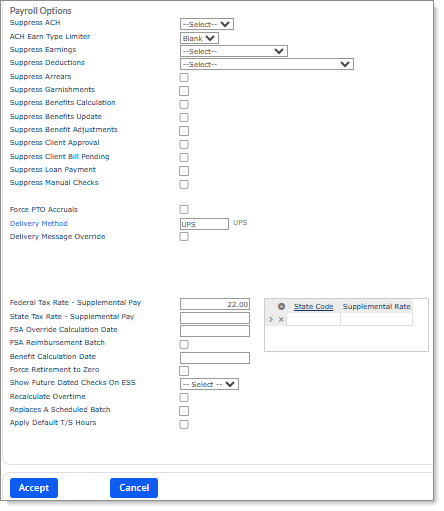
You can set special processing options as needed for all employees included in the payroll batch using the Payroll Options form. To access the options, open a payroll in the Payroll Control form and then select Options from the Actions menu. For example:
To set special processing options:
|
1.
|
Select ACH in the Suppress ACH field to prevent the generation of direct deposit transactions. (Employees normally paid by direct deposit will receive paper checks instead.) For example, you might select this option when the client wants to deliver live checks for year-end bonuses. |
Note the following:
|
•
|
This field applies only to employee ACH processing. It does not suppress electronic billing. |
|
•
|
If you select Suppress ACH with Pay On-Demand selected, an error message displays stating that they cannot be enabled for the same payroll. |
|
•
|
If you create a manual payroll with Pay On-Demand selected and then apply a Payroll Option Template with Suppress ACH selected within a timesheet, an error message displays stating that they cannot be enabled for the same payroll and the system does not apply the Payroll Option Template. |
|
2.
|
Select the ACH Earn Type Limiter to specify the voucher types that will be processed as ACH transactions. Voucher types that you do not specify will be processed as paper checks. This overrides the settings defined in the Employee Details Deposit tab. |
|
•
|
Blank: All checks (regular, vacation, and supplemental) |
|
•
|
V: Only vacation checks |
|
•
|
S: Only supplemental checks |
|
•
|
RV: Only regular and vacation checks |
|
•
|
RS: Only regular and supplemental checks |
|
•
|
VS: Only vacation and supplemental checks |
|
3.
|
Select Suppress Other Earnings from the Suppress Earnings drop-down to prevent payment for other earnings. |
|
4.
|
From the Suppress Deductions drop-down, select what payroll deductions (other than payroll taxes) to suppress for this payroll batch, if any. For example, you might need to suppress retirement deductions from bonus pay if employees opt not to have it deducted. |
Note the following:
|
•
|
When you run a supplemental batch, the system ignores voluntary deductions. |
|
•
|
The system sends benefit deductions to arrears. |
|
5.
|
Select Suppress Arrears to prevent the deduction of any amounts in arrears. |
|
6.
|
Select Suppress Garnishments to prevent garnishment deductions. |
|
7.
|
Select Suppress Benefits Calculation to suppress withholding of any benefits deductions and benefit accruals/arrears calculations. If you suppress benefits for this payroll batch, the system does not calculate benefits for the pay period, and therefore no benefit deductions go to arrears. |
|
8.
|
Select Suppress Benefits Update to suppress the benefit update step that updates benefit-related deduction amounts on employee standard deduction records. |
The system normally updates the benefits on the employees’ standard deduction schedules according to the parameters set at the system level. For example, if you change the amount of the employees’ contributions on the Group Benefit Plan, the system updates the employees’ standard deduction schedule to reflect the change. Use the Suppress Benefits Update option to suppress that update.
|
9.
|
Select Suppress Benefit Adjustments to suppress the processing of benefits adjustments. |
|
10.
|
Select Suppress Client Approval to except the payroll batch from the approval process. The payroll batch processes as if the client company does not use approvals. |
|
11.
|
Select Suppress Client Bill Pending to suppress client bill pending for this batch. |
|
12.
|
Select Suppress Loan Payment to suppress the loan payment from calculating and processing in the current payroll. |
|
13.
|
Select Suppress Manual Checks to prevent a manual check from processing in the next regularly scheduled payroll and instead process it through a separate, special batch. (Note: This functionality is available for Scheduled and Special batches, but does not apply to Manual batches.) |
|
14.
|
Enable Force PTO Accruals to override standard PTO accrual functionality for payrolls that are not yet initialized and are set to the Manual or Special/Unscheduled payroll type on the Payroll Control form. |
|
15.
|
Select Suppress Payday Notifications to suppress payday notifications at the batch level for regularly scheduled payrolls. |
|
16.
|
Enter or select the Delivery Method to use for shipping the paychecks and other batch documents. The default comes from the Company Details Payroll tab. |
|
17.
|
Select Delivery Message Override to enter a message in the Special Message field that will display on the payroll's delivery sheet after payroll completes. |
|
18.
|
Enter the Federal Tax Rate - Supplemental Pay, which is the rate to use as the federal tax percentage rate for all supplemental pay. This overrides the aggregate method. |
|
19.
|
You can override the state tax percentage rate for all states, or for specific states. |
|
•
|
All states: In the field, enter the State Tax Rate - Supplemental Pay, which is the rate to use for all supplemental pay. This overrides the rate for all states. |
|
•
|
Specific states: In the table, enter the two-character State Code for each state that should use an override state tax rate, as well as the Supplemental Rate to use for each state. |
|
20.
|
For a manual or special/unscheduled batch, enter the FSA Override Calculation Date that the system should use as the scheduled pay date for FSA calculations. |
|
21.
|
Select FSA Reimbursement Batch to specify that this is a standalone payroll batch used only to process FSA reimbursements (must be defined in System Parameters). |
|
22.
|
Enter or select the Benefit Calculation Date to override the actual pay date as the basis for benefit calculations that use an as of date. |
|
23.
|
Select Force Retirement to Zero to set all retirement deductions to zero for the employees included in the payroll batch. |
|
24.
|
Use the Show Future Dated Checks On ESS drop-down to indicate whether employees can view paychecks in the payroll that have future dates in Employee Self Service or Employee Portal (EP). This overrides the global setting. |
|
•
|
Yes: Checks in this payroll batch with dates in the future display. |
|
•
|
No or Select: Future checks do not display. |
|
25.
|
Select Recalculate Overtime if the payroll batch should recalculate overtime rates. This option is available only for new payrolls. |
Note: Enabling or disabling the Recalculate Overtime field in this form automatically sets the same status in the Recalculate Overtime field on the Batch Payments form.
|
26.
|
Select Replaces A Scheduled Batch to run this as an unscheduled payroll batch in place of a regular one. |
|
27.
|
Select Apply Default T/S Hours to use the employees’ default time sheet hours, if any, in an unscheduled batch. If you do not select this option, all employees show 0.00 hours in the time sheet. |
You must select this option when you first create the payroll; the system applies the default hours when it creates the new time sheets. If you save the payroll without selecting this option, and then select it later, the employees’ hours remain zero.
|
28.
|
Select Pay On-Demand to pay employees on-demand through a manual payroll, where the system places the funding information in a file format for the pay on-demand vendor. |
Note the following:
|
•
|
Manual payrolls set to Pay On-Demand do not use the ACH process. |
|
•
|
A warning displays if you save a manual payroll with Pay On-Demand enabled and then later disable it, "By turning off Pay On-Demand any employees in this payroll may not be paid through the Pay On-Demand accounts which allow for same-day payment." |
|
29.
|
Click Accept. You return to the Payroll Control form. |
|
30.
|
Click Save in the Payroll Control form. |
