Submitting a Correction
If you want to create an Original or Replacement file, please see See Creating the ACA Transmission File or See Submitting a Replacement
Introduction
If you need to correct a Form 1094-C record or any Form 1095-C records after you already made an accepted submission to the IRS, you need to submit a correction file. This file only includes the employees whose information changed.
For detailed information about submitting corrections to the IRS, please see Section 7 of the Guide for Electronically Filing Affordable Care Act Information Returns for...Transmitters.
State Reporting
For details about PrismHR's support for state reporting, please see the introductory material under Creating the ACA Transmission File.
Note About File Sizes
According to IRS guidelines, the transmission file must be smaller than 100 MB. However, there is no consistent rule about the number of records that will cause a file to exceed 100 MB. Internal testing shows that it involves many thousands of employees. Please check the size of the output file after you create it. If it exceeds the limit, use the From Employee and To Employee fields as described below to specify a smaller range of employees instead.
Procedure
WARNING: Before running this process, ensure that there are no users accessing any 1094-C or 1095-C records in the system. If anyone is editing those records, the system will hang.
Before starting the correction process, ensure that you already have the Receipt ID for the transmission you need to correct.
Please only use the Jurat Signature PIN, Person Title Text, and Signature DT if you know precisely what should go in those fields. If you enter the wrong information, or the information is in the wrong format, the IRS will reject the submission.
To submit an ACA correction file:
|
1.
|
Open the Work Centers menu. |
|
2.
|
Under Work Centers|Compliance, select ACA Processing. |
|
3.
|
Under ACA Processes, select Edit 1094 Form. |
|
4.
|
Under the Federal Transmission Info tab, select Send As Correction. |
|
6.
|
For each employee that you need to correct: |
|
•
|
Select Send As Correction. |
|
7.
|
Log in to PrismHR, click the Reports menu  , and navigate to the HR|Report > ACA Transmission File form. , and navigate to the HR|Report > ACA Transmission File form. |
|
9.
|
In certain situations, you may need to report multiple clients as one single company. In this case, select the IDs of any additional clients you want to include in the file (See ACA Transmittal Tips & Tricks). |
|
10.
|
Use the From Employee and To Employee fields only if this is a large client and you need to create multiple smaller files. The IRS requires that the XML file be less than 100 MB in size. for detailed instructions. |
|
11.
|
In the State Code field, select Federal or California depending on which transmission file you want to create. |
|
12.
|
Set Submission Type to Correction. |
|
13.
|
If you are submitting a Federal correction, select whether the Correction Type is for the 1094 or 1095. |
|
14.
|
Enter the Original Receipt ID from the IRS. |
If there are many hundreds or thousands of records, this can take a few minutes; the system might time out without warning you. Please contact the PrismHR Customer Support Team if you experience an issue.
Checking the Generated File
The system creates a ZIP archive containing two files: the form file and the manifest file. The manifest file includes the unique transmission ID for the client company, and the system populates that ID in the Par 1 panel of the Client 1094 record.
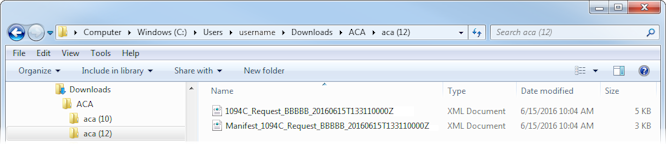
If you unzip the aca.zip file, you will see two XML files with similar names, as in the example below. The manifest file has the prefix Manifest_, and the other file contains the Form 1094-C and Form 1095-C information. Make sure that the files are smaller than 100 MB. If they are not, you must perform the procedure again and follow the instructions for Editing Form 1094-C Information. Also, refer to About 1095 and 1094 Registers for more information.
Note: The two files you ultimately submit must have the same time stamp. Check the Date modified column in your file explorer, as shown below.
see Reviewing the ACA Transmission File XML Output for error-checking suggestions. When you are satisfied with the contents of the files, you can submit them to the IRS (see AIR Transmission: Uploading the ACA Files or the appropriate state reporting entity. Remember: as soon as you receive your receipt ID from your reporting entity, enter it into the system (see Entering the IRS Receipt ID).
