 icon in
 Payroll Variance Analysis
The Payroll Variance Analysis dashboard displays information from the most recent payroll and provides a comparison with previously finalized payrolls. For example:
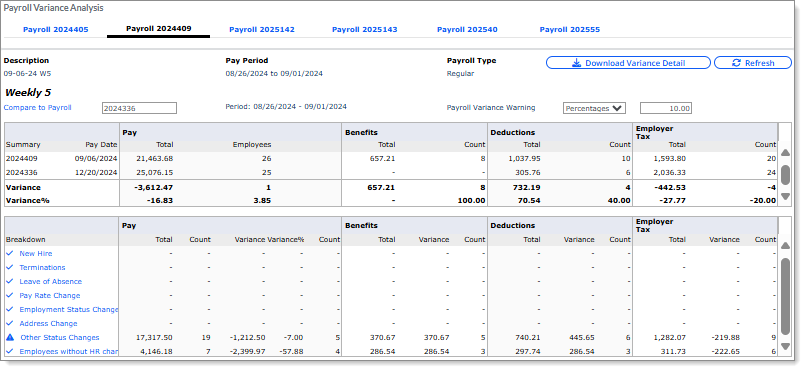
The Payroll Variance Analysis dashboard displays the following information:
-
Current payrolls in Calculated status display as tabs. Select a tab to view a payroll. The payroll's Description, Pay Period, and Payroll Type display. In addition, the name of the pay rate displays. This value could be weekly, bi-weekly, semi-monthly, or monthly. (It is based on the names in the system, so some payrolls might have unique names created by training sessions.)
-
Select Compare to Payroll to select a payroll in Finalized status to compare to the current payroll.
-
Note: The payroll number you enter or select in the Compare to Payroll field must meet the following criteria:
-
The comparison Payroll Pay Date is within 180 days of the initialized Payroll.
-
The comparison Payroll Type is Regular or Special.
-
The comparison Payroll Number is a valid payroll.
-
The comparison Payroll is finalized.
-
The comparison Payroll includes the same Pay Group.
-
-
Select one of the following options in the Payroll Variance Warning field to display the Amounts or Percentages threshold between the current payroll and the comparison payroll:
-
• Amounts: Displays threshold amounts. (There is no maximum amount for this option.) • Percentages: Displays threshold percentages between 0-100. -
Note: A text box displays next to the Payroll Variance Warning field where you can change the amount or percentage number. (This number defaults to 10.) If you enter a number for Amounts that is greater than 100 and then select Percentages, the number reverts to 10 (default).
-
The Variance and Variance% values display the statistical dispersion of data compared to the mean values.
-
Select a category in the Breakdown field to view a list of individual employees in that category.
-
While viewing a category, select the Voucher link for an employee to view that employee's Variance Voucher, which compares the two payrolls for that employee. Select Detail to display a file audit for the payroll change.
In addition, you can do the following:
| • | Download the dashboard by selecting Download Variance Detail. |
| • | Display a warning if the variance equals or exceeds a percentage by entering that percentage in the Payroll Variance Percentage Warning field. |
