Child Support Garnishments
The following rules apply to child support garnishments:
|
•
|
The system determines the correct maximum percent of disposable income based on employee details |
|
•
|
Disposable earnings can be tailored to state rules |
|
•
|
Pro-rata and Equal Share allocations are supported for multiple orders |
|
•
|
Portion in arrears can be defined |
|
•
|
Current order amount given priority on arrearage amount when calculating multiple orders |
Employee Garnishment
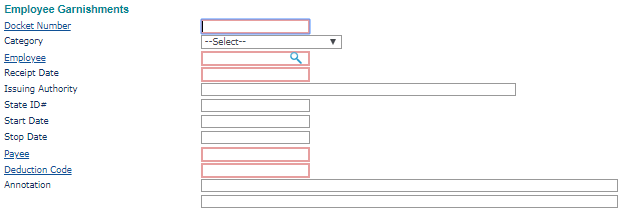
The Employee Garnishment panel maintains the basic information required for the wage garnishment.
|
1.
|
Enter the Docket Number assigned by the government agency or court for this wage garnishment. |
|
2.
|
Select the Category for the type of garnishment being withheld. This determines some of the other panels that display (described below). |
|
3.
|
Enter the Employee by either entering the name, Social Security Number, or ID to display a pop-up list of matching employee records. You can also click the field label or press Ctrl+Enter with your cursor in this field to open the search window. You cannot change the employee for a existing garnishment. |
|
4.
|
Enter the Receipt Date on which the wage garnishment notice was received from the issuing authority. |
|
5.
|
Enter the garnishment's Order Date. This ensures proper garnishment priority ordering in the system. (Only displays if you enabled the TESTGARNEXT and GARNFTLORDER feature codes). |
|
6.
|
Enter the name of the Issuing Authority that issued this garnishment. |
|
7.
|
If the state requires you to use an ID other than the docket number, enter it in the State ID# field. This number appears on the checks instead of the docket number. |
|
8.
|
If you enter a Start Date, the system starts payroll deductions on or after this date. |
|
9.
|
If you enter a Stop Date, the system stops payroll deductions on or after this date. |
|
10.
|
Enter the Payee ID to whom amounts withheld for this wage garnishment will be paid. If the payee record is set up to use EFT, the SDU or EFT panel might display. |
|
11.
|
Enter the Deduction Code used for this garnishment. |
|
12.
|
Enter an Annotation to print in the Memo field of the check stub. There are two lines available. |
Calculation Rules
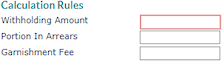
Enter the calculation rules for the child support garnishment.
|
13.
|
Enter the Withholding Amount to withhold each pay period for the child support garnishment order. This amount should be the sum of current and past due amounts. |
|
14.
|
Enter the Portion in Arrears amount to withhold for the child support order to cover the arrearage amount. |
|
15.
|
Enter the Garnishment Fee that is associated with this garnishment, which PrismHR deducts from the employee’s pay each time it processes the garnishment. |
SDU
The system supports the ability to create an ACH file with line items for garnishments. This allows you to submit an ACH file that results in an EFT for all state tax levies.
If a garnishment is for child or spousal support and the payee is a state disbursement unit, you can set up EFT for the garnishment on the SDU panel. The SDU panel establishes the appropriate state information required to process the wage garnishment.
|
16.
|
Enter the Case Identifier recognized by the state disbursement unit for child support orders. This field is required if the payee is set to require the case number. |
|
17.
|
Enter the FIPS Code (Federal Information Process Standard) applicable to the child support entity receiving the transaction. This field will be required if the payee is set up to require the FIPS code and it can require a specific length. |
|
18.
|
Select Medical Support Indicator if the non-custodial parent has family medical insurance through their employer. |
Setting Temporary Garnishment Overrides
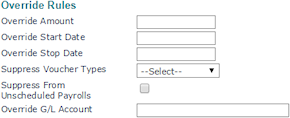
You can establish temporary garnishment overrides based on specified dates by updating the settings in the Override Rules panel.
To set temporary garnishment overrides, do the following:
|
1.
|
In the Override Rules panel, complete the following fields: |
| Override Amount |
Enter the temporary Override Amount to use during the specified date range. |
| Override Start Date |
Enter the temporary Override Start Date. |
| Override Stop Date |
Enter the temporary Override Stop Date. |
| Suppress Voucher Types |
Select the Suppress Voucher Types, which are the pay types exempt from this garnishment. This setting is not controlled by the override start and stop dates. Instead, it applies to the entire garnishment record. |
| Suppress From Unscheduled Payrolls |
Select Suppress From Unscheduled Payrolls, if the garnishment should not be taken out of unscheduled payrolls. |
|
Override G/L Account
|
Enter the Override G/L Account that identifies the account number this garnishment credits.
|
|
2.
|
When you have finished entering the information, click Save. |
Payments History
The Payments History panel provides a list of garnishments that have been paid to date.

|
•
|
The table lists the information for each payment: |
|
•
|
Voucher Number: Each voucher that has been paid against this garnishment |
|
•
|
Pay Date: Date on the voucher |
|
•
|
Amount Due: Amount due as calculated on the voucher |
|
•
|
Paid On: Date each check was paid |
|
•
|
Check Number: Number on the check used to pay the garnishment to the payee |
|
•
|
ACH Reference: Reference for the ACH transaction used to pay the garnishment to the payee |
|
•
|
EFT/Check$: Amount of each check or transaction |
|
•
|
Click Adjust to make an adjustment to the table. This does not affect accounting updates or functions, but can cause an adjustment to the employee’s next paycheck. |
