icon in
 Working with Employee Timesheet Information
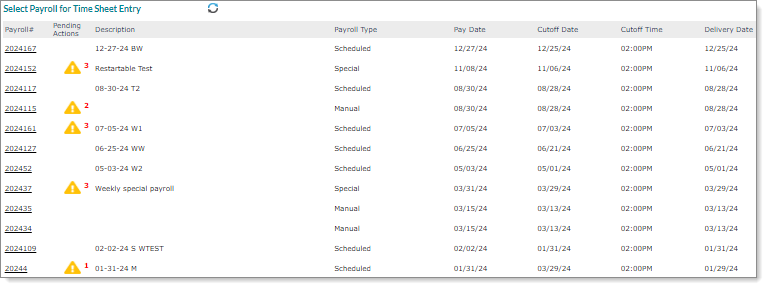
Use the Time Sheet Entry form to select a payroll in order to enter, edit, and accept employee timesheet information. For example:
To work with employee timesheet information:
| 1. | Select the desired Payroll #. The Time Sheet Entry form opens see Entering Time Sheets. |
| 2. | Click the yellow indicator in the Pending Actions column to view pending approvals for the logged-in user, pending approvals for other users, and pending backdated leave request details for the selected payroll. |
Note: The yellow indicator in the Pending Actions column displays the total number of pending actions in this payroll.
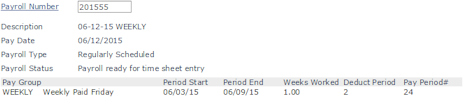
| 3. | Click the small inquiry icon  in the payroll line to view the Client Payroll Inquiry. For example: in the payroll line to view the Client Payroll Inquiry. For example: |