 icon in
 Establishing User Data Security
You can establish security for worksite manager and worksite trusted advisor users to specify the user's access to companies, divisions, departments, locations, shifts, and so on.
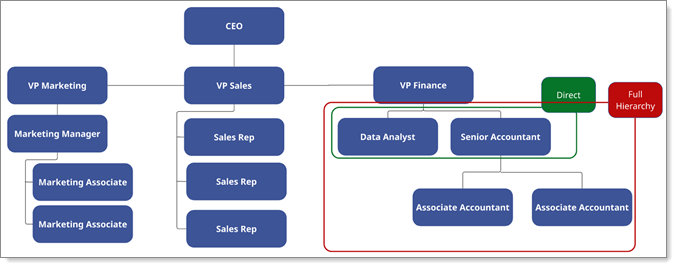
The following chart displays a high-level overview of the Data Security access hierarchy:
To establish security:
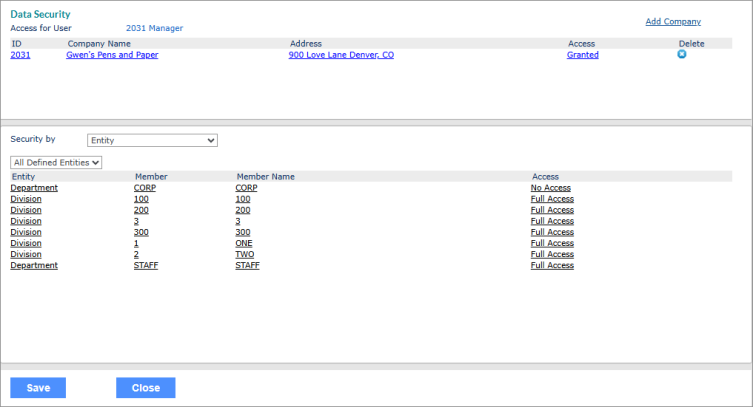
| 1. | While editing the user account in the Users form, open the Actions menu and select Data Security. The Data Security window opens. |
| 2. | Maintain the companies that the user can access: |
| • | To add access to a client: |
| a. | Click Add Company and then select the client the user can access. Typically, this is the client that employs the user. The Access is set to Pending. |
| b. | Return to the Users form to select the employee ID. If you select an employee that is employed by the client, then the Access changes to Granted. |
| • | For clients already assigned to the user, the access you can set depends on whether the user is employed by that client. If the user is, then you can set the access to Granted or a thru date, otherwise you can set only a thru date. |
| • | To change from Granted or Pending to a thru date: |
| i. | Click the link. |
| ii. | Enter the Optional Override Access Thru date. |
| iii. | Click Submit. The user’s access to the client expires after 11:59:59 p.m. on that date (Central Time). |
| • | To change from a thru date to Granted: |
| i. | Click the link. |
| ii. | Delete the Optional Override Access Thru date. |
| iii. | Click Submit. The access is set to Granted. |
| • | To remove access completely, click the Delete icon  in the company row. in the company row. |
| 3. | Configure a user's Data Security access hierarchy by setting one of the following options in the Security by field: |
| • | Entity (default): User is granted access to all entries. |
| • | Manager Direct Reports: User is only granted access to their direct reports. |
| • | Manager Full Hierarchy: User is granted access to their direct reports and any employees that are assigned to or inherited by their direct reports. |
| • | PTO Approver Direct Reports: User is only granted access to their direct reports. |
| • | PTO Approver Full Hierarchy: User is granted access to their direct reports and any employees that are assigned to or inherited by their direct reports. |
Note: The Security by field is available for service providers with access to configure a worksite manager's (WSM) Data Security.
| 4. | The entities are for the selected client and are set in Client Details. Using the drop-down, you can choose to show All Defined Entities or limit the list to specific entities. |
| • | To configure access for entries in the All Defined Entities table, ensure that you set the Security by field to Entity. |
| • | If you select options other than Entity, the table displays the list of employees that are directly related to the selected data security option in read-only format. |
| 5. | For each defined entity, you can set the access by clicking the row: |
| • | Full Access: User can view, edit, and save data. |
| • | No Access: User cannot see any information associated with the entity. |
| 6. | When you are finished, click Save. You return to the Users form where you can complete the necessary steps for editing the user. |
