This page has moved and will no longer be updated. To access the current page, click the Online Help  icon in PrismHR or navigate to the new help docs site and search for your topic.
Employee Pay Rate Report
Your organization can use the Employee Pay Rate Report to view information about employee pay rates.
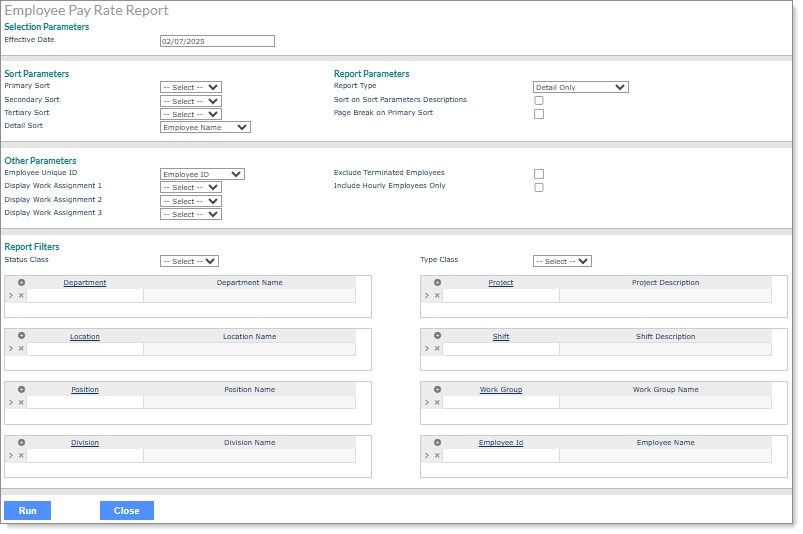
To generate the Employee Pay Rate Report:
|
1.
|
Enter the Selection Parameters to determine what displays on the report: |
|
•
|
Enter the Effective Date for the employee information you want to view in the report. The report will display information as of the date entered. |
|
2.
|
Set the Sort Parameters: |
|
•
|
Select the Primary Sort for the report. |
|
•
|
You can select a Secondary Sort and Tertiary Sort. |
|
•
|
Select the Detail Sort (Employee Name, Employee Unique ID). |
|
3.
|
Set the Report Parameters: |
|
•
|
Select the Report Type: |
|
•
|
Detail w/Break Totals: Includes a break and a sub-total for each of the sort options entered (except employee name), as well as a grand total for all employees. |
|
•
|
Detail Only: Includes the detail information without sub-totals, only a grand total for all employees. |
|
•
|
Summary Only: Does not include details, but only sub-totals for each of the sort options entered (except employee name) as well as a grand total for all employees. |
|
•
|
Select Sort on Sort Parameters Descriptions to sort the report by the descriptions instead of the codes selected as the Sort Parameters. |
|
•
|
Select Page Break on Primary Sort to start a new page for the selected Primary Sort items. |
|
4.
|
Set the Other Parameters: |
|
•
|
Select the Employee Unique ID to use in the report (Employee ID, Employee Number). |
|
•
|
You can select up to three work assignments to display in the report using the Display Work Assignment 1, Display Work Assignment 2, and Display Work Asignment 3 drop-downs. |
|
•
|
Select Exclude Terminated Employees to exclude terminated employees from the report. |
|
•
|
Select Include Hourly Employees Only to run the report for only those employees who are paid an hourly rate. |
|
5.
|
Enter the Report Filters to display on the report: |
|
•
|
Enter the field type. The field label displays. For example, if you enter a Location, the Location Name displays. The report displays records for that Location. |
|
6.
|
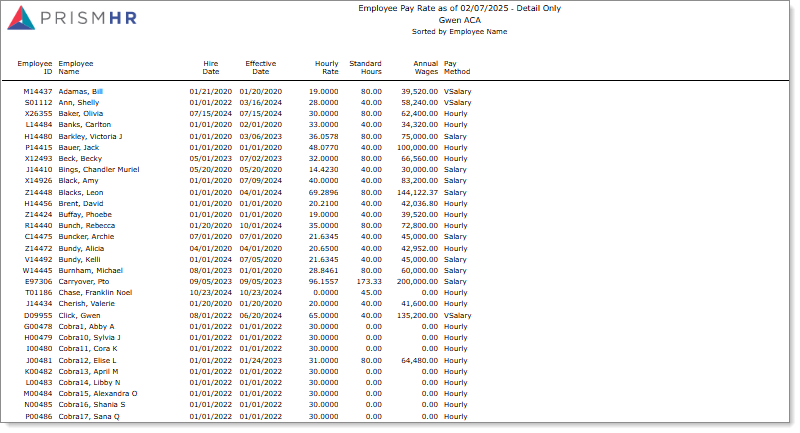
Click Run to generate the report. The Employee Pay Rate Report displays. For example: |
Note: Click Close to close this form.
The report columns that display are based on the criteria specified in the form:
|
•
|
Employee ID: The employee ID. |
|
•
|
Employee Name: The employee name. |
|
•
|
Hire Date: The most recent date of hire for the employee. |
|
•
|
Effective Date: The effective date of the pay rate change. |
|
•
|
Hourly Rate: The hourly pay rate for the employee. |
|
•
|
Standard Hours: The number of work hours per week for the employee. |
|
•
|
Annual Wages: The employee's annual wages. |
|
•
|
Pay Method: The pay method used for the employee. |
Note: Employees assigned the Variable Salary option in the Pay Method field on the Employee Details form displays as "VSalary" in the on-screen and .xls report output. (The Variable Salary option only displays if the VARSALMETHOD custom feature code is enabled on the System Parameters form.)
|
•
|
Employee Count: The number of employees included in the report. |
|
•
|
Report Totals: The totals for all amounts in the report. |
