Building Structure for Chart of Accounts Segments
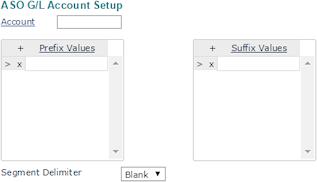
Use the ASO G/L Account Setup form to build the structure for chart of accounts segments, if they are different than what is set up in the global parameters. Indicate the overrides, if any, that are necessary to meet the client's account structure requirements.
|
1.
|
Enter the core Account code to build. |
|
2.
|
If required, enter the variable or string Prefix Values for the G/L account number. For example, enter 01 to prefix the G/L account numbers with 01. |
|
3.
|
If required, enter the variable or string Suffix Values for the G/L account number. |
|
4.
|
Select the Segment Delimiter to use between the account number and the prefix or suffix values. |
Prefix/Suffix Overrides
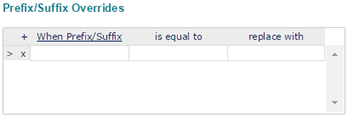
If the G/L account requires a prefix or suffix override, enter that information in the Prefix/Suffix Overrides panel.
|
a.
|
Enter the When Prefix/Suffix term to override, for example, DEPARTMENT. |
|
b.
|
Enter the is equal to value, for example, ACCT. |
|
c.
|
Enter the replace with value to use instead, for example, 700. |
In our example, PrismHR replaces the department code ACCT with 700. The account number displays as 700-6000 in the report or download for the client.
Account Overrides
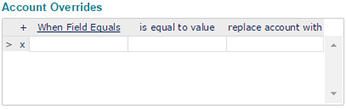
If the G/L account requires an account override, enter that information in the Account Overrides panel.
|
a.
|
Select the When Field Equals term to override, for example, LOCATION. |
|
b.
|
Enter the is equal to value, for example, MAIN. |
|
c.
|
Enter the replace account with value to use instead, for example, 6000.10. |
In our example, PrismHR overrides the account number for the MAIN location with 6000.10.
